

Teams are where OKRs, KPIs, check-ins, and actions live in OKRnest. Each organisation has a Teams directory and a dedicated workspace per team.
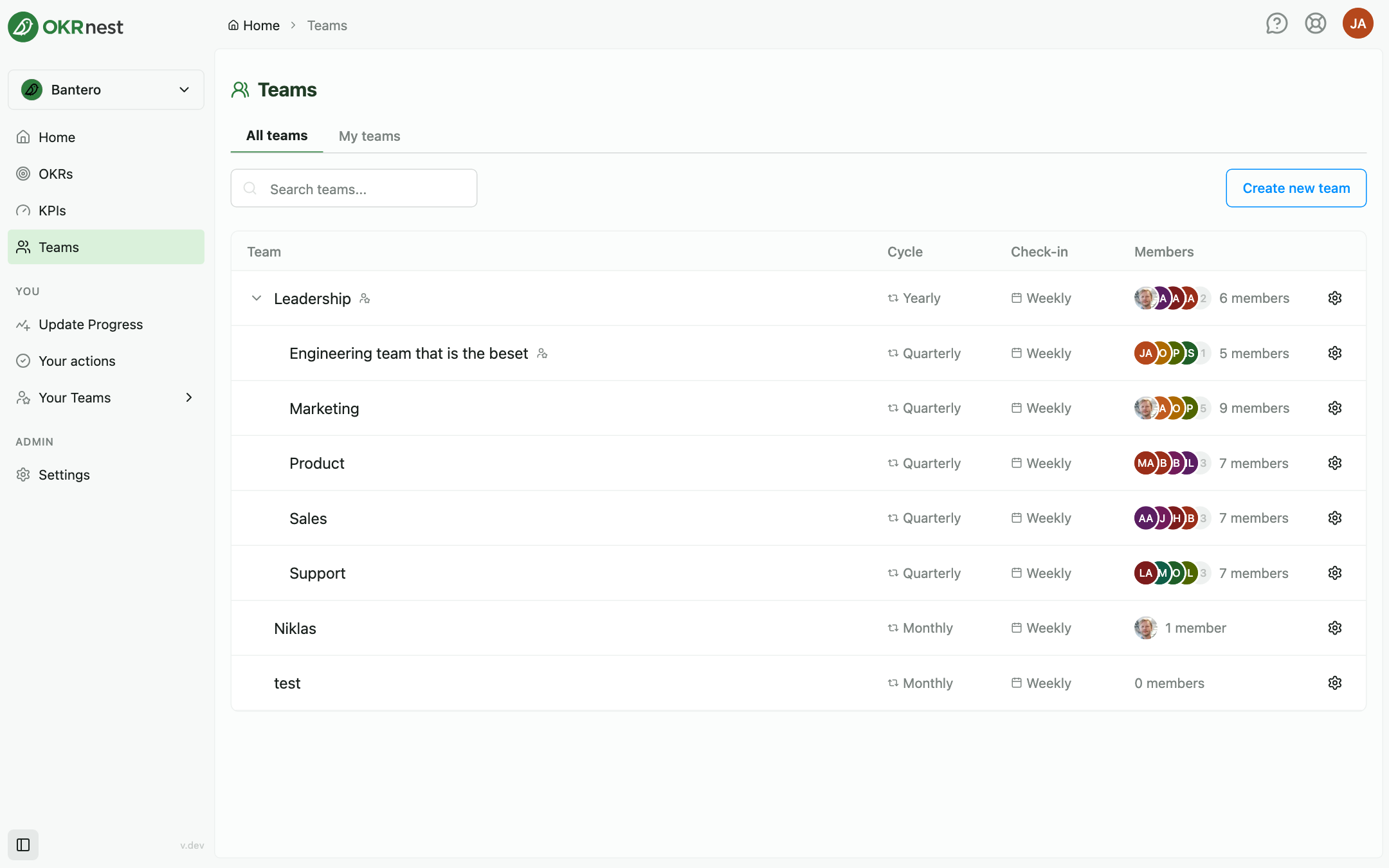
Teams directory
Open Teams from the sidebar.
Tabs
- All teams: Every team in the organisation
- My teams: Teams you belong to
Search and table
Use Search teams... to filter by name. The table shows:
| Column | Meaning |
|---|---|
| Team | Name; click to open the team workspace |
| Cycle | The team's cycle length (standard or custom cycle type) |
| Check-in | The team's check-in cadence |
| Members | Member avatars and count |
Parent teams show a chevron to expand or collapse child teams. The hierarchy reflects parent team relationships (departments under divisions, squads under departments, and so on). A star icon marks teams you are a member of. Admins and owners also see a gear icon (Team settings) at the end of each row.
Creating a team
Click Create new team (desktop) or New team (mobile). Requires Admin or Owner access.
In the Create New Team panel:
| Field | Notes |
|---|---|
| Team name | Required |
| Parent Team | Optional; keep No parent team for a root team |
| Cycle Length | Required; choose a standard length (e.g. quarterly) or a custom cycle type defined by your organisation |
| Check-in Cadence | How often members should update key results (Weekly, Bi-weekly, Monthly, Quarterly, Yearly, or Custom) |
| Team Members | Add existing users with Add Member, or use Invite more users |
| Team lead (optional) | Appears once you have added a member. Pick one member as lead, or leave No lead |
Submit with Create Team.
Team workspace
Click a team name to open its workspace. The main sidebar collapses to make room for the team's own section menu (a dropdown on mobile):
| Section | Purpose |
|---|---|
| OKRs | Create, update, and view status for the selected cycle period |
| KPIs | The team's standalone metrics |
| Check-ins | List and run team check-ins |
| Actions | Team action board (when the Actions feature is enabled) |
| Members | View and manage who belongs to the team |
| Activity | Chronological feed of changes on this team |
| OKR Cycles | List all cycles, archive, edit periods, delete |
| Settings | Team name, parent team, team lead, cycle length, check-in cadence, delete team |
Breadcrumbs show Teams > team name, plus the section name when you are not on OKRs. Each section has its own URL, so you can bookmark or share a link straight to a team's check-ins or cycles.
OKRs section (Create, Update, Status)
Inside OKRs, use the period selector (Select period, with Previous cycle and Next cycle arrows) to pick the cycle. Three tabs mirror the OKR workflow:
- Create: Draft or edit objectives and key results
- Update: Record progress on key results
- Status: Progress and traffic-light overview for the whole team, with export and sharing
Permissions gate each tab: team members can use all three on their own team, while non-members need Admin or Owner access to edit or update. See Creating OKRs, Updating Key Results, and OKR Status & Traffic Lights.
Leaving Create with unsaved edits prompts you to stay or leave.
KPIs
The KPIs section lists the team's standalone metrics with their latest value, owner, and update date. From here you can create KPIs, add progress updates, and open a KPI's status view. Key results can track a KPI instead of their own metric; see Tracking a KPI with a Key Result.
Members
The Members section lists everyone on the team. Admins, owners and the team lead click Edit members to add people with Add Member (or Invite more users) and remove them with the × on a row, then Save Changes. Membership determines whose OKRs you see in team views, who appears in owner dropdowns, and who can edit the team's OKRs and check-ins.
Team lead
Each team can have one lead, shown with a Lead badge at the top of the member list. Only admins and owners can set or clear the lead: click Edit members (or Edit settings in the Settings section), pick someone in the Team lead dropdown (or choose No lead), then Save Changes. The lead must be a member; picking someone adds them to the team automatically, and removing the lead from the members list clears the lead.
A lead does not need to be an admin. For the team they lead they can:
- Add and remove members
- Change the team name and check-in cadence
- Delete OKR cycles
Changing the parent team, the cycle length or the lead itself, and creating or deleting teams, stay with admins and owners. Lead status applies to one team only and is not inherited by child teams. If a lead removes themselves from the team, they are warned that they will lose lead access.
Activity
Activity shows edits, updates, check-ins, and membership changes for this team only. Use it when you need team-scoped history instead of the home Recent activity feed.
Settings
Settings shows the team's name, parent team, team lead, cycle length, and check-in cadence. Admins and owners click Edit settings to change them; the team lead can also edit the name and check-in cadence, while the other fields (including the lead) show as read-only. Changing the cycle length only affects cycles created from then on; existing cycles keep their dates. Delete team is available here for authorised users and asks for confirmation.
Hierarchy and alignment
Child teams can sit under a parent team. Parent relationships affect:
- The team tree on the Teams page and on the organisation-wide OKRs page
- Link to parent key result in Key Result Settings
- The Teams mode and Bottom-up direction on the alignment map
Tips
- Name teams like your org chart: Clear names make the organisation-wide OKRs page and alignment map easier to read
- Set cadence when creating: Changing rhythm later is possible in Settings, but early consistency builds update habits
- Use My teams for daily work: Contributors can ignore the full directory and live in My teams
- Open OKR Cycles for oversight: Leads get a list of every period with status and progress without stepping through them one by one