

A check-in is a structured snapshot of how your team is doing on its OKRs for a chosen date. The check-in composer shows a team overview with a key result panel that opens for each key result you want to document. Changes autosave as you work.
Before you start
- The cycle must be active. Draft cycles show OKRs Not Yet Published in the Check-ins section instead of the list
- You need to be a member of the team (non-members need Admin or Owner access)
Starting a new check-in
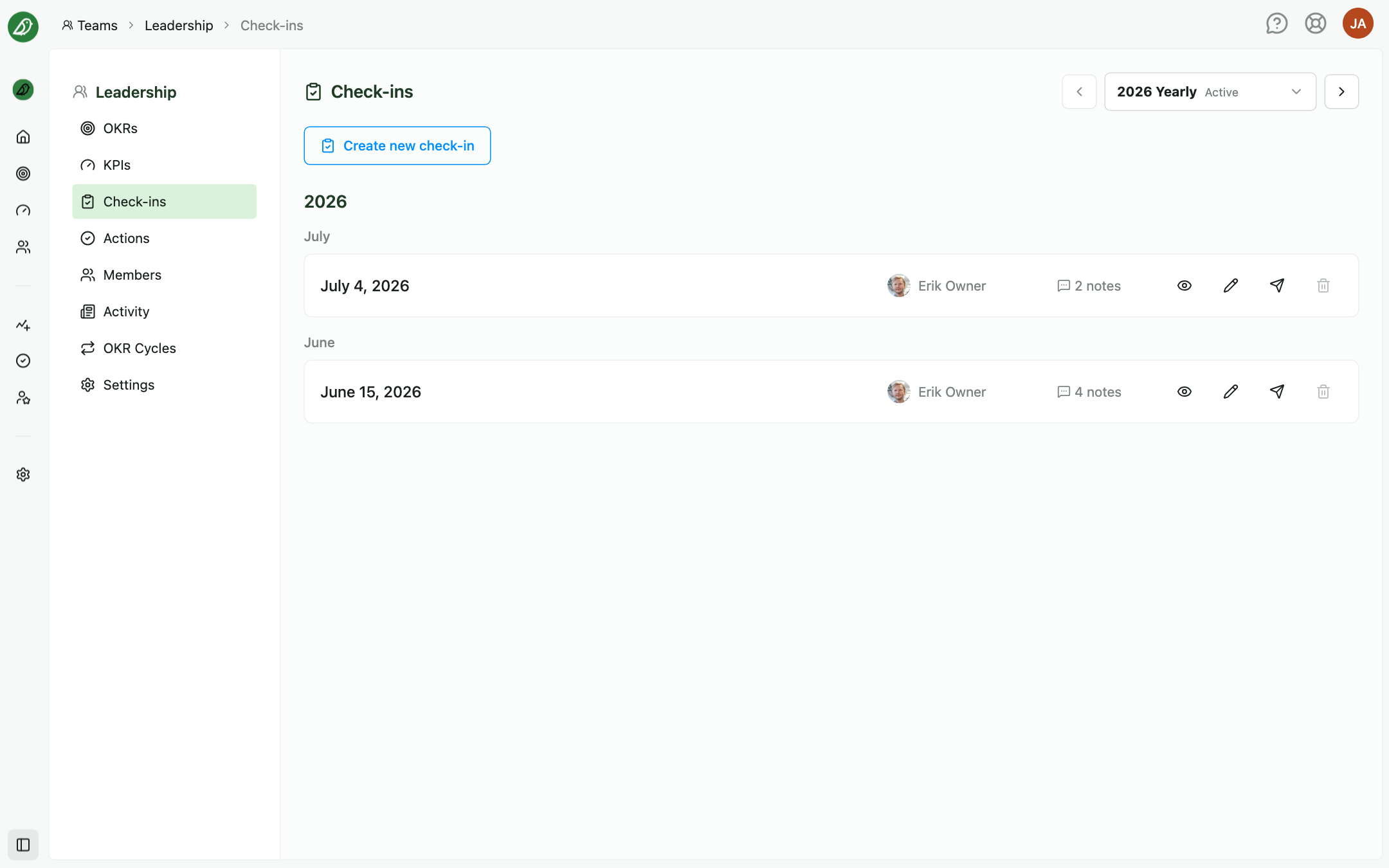
- Open your team and choose Check-ins in the section menu
- Select the correct cycle period at the top if needed
- Click Create new check-in
The composer opens as a full-screen dialog. Use the Expand and Fullscreen controls in its top corner to give it more room.
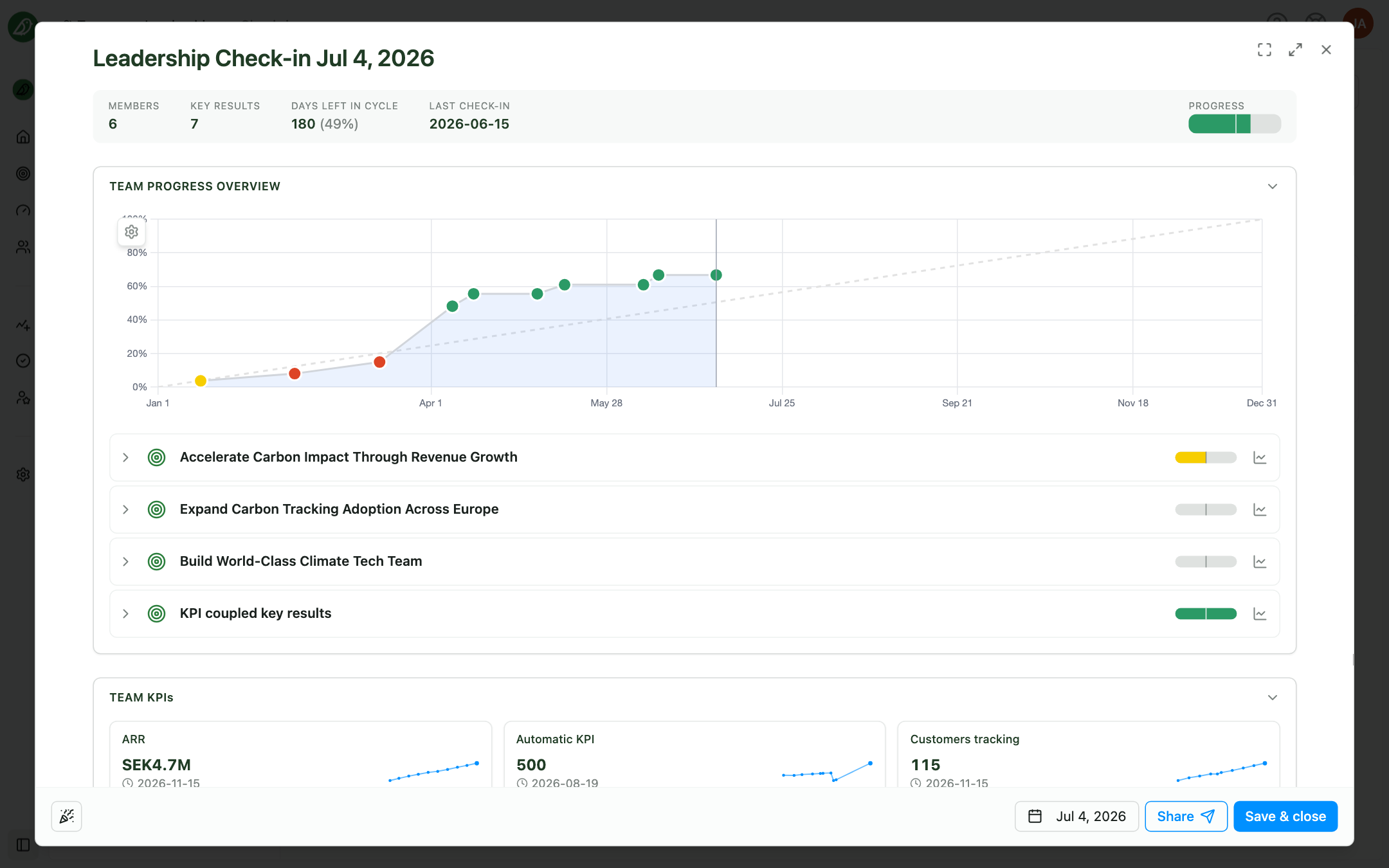
The overview
The overview is headed {Team} Check-in {date} and starts with a strip of numbers: Members, Key results, Days left in cycle, Last check-in, and Progress. Below it are collapsible cards:
| Card | What you do |
|---|---|
| Team Progress Overview | A progress chart with all key results listed under their objectives. Click a key result to open its panel |
| Team KPIs | The team's KPIs and their latest values (shown when the team has KPIs) |
| Add note | General notes for the whole check-in, with an optional AI summary |
| Notes from last check-in | What was written last time, for comparison |
| Team Actions | Actions linked to the team rather than to a specific key result (when the Actions feature is enabled) |
The key result panel
Click a key result in the overview to slide in its panel from the right. At the top, a key result selector and the Previous and Next arrows move between key results without going back to the overview. Each panel shows the owner, last update, start, target, current value, status, and progress, followed by cards for the Key Result Progress Overview, Status history, Add note, Key result Actions, and Supported by (linked objectives and key results, when alignment is enabled).
Use Add progress update in the panel to record a new value, traffic light, last day included, and comment. This uses the same fields as the team Update tab; see Updating Key Results. Close the panel with the × to return to the overview.
Check-in date
Use the date button in the footer (Select date) to set which date this check-in represents. It defaults to today but can be adjusted for retrospectives or late entries.
Autosave
Your work saves automatically:
- Changes save in the background a few seconds after you stop typing
- The footer shows Saving..., then Autosaved, or Save failed if something went wrong
- Save & close saves immediately and closes the composer (toast: Check-in saved)
If you try to close with unsaved changes, an Unsaved changes dialog lets you cancel or discard. Leaving the browser tab with unsaved work triggers a standard browser warning.
Sharing from the composer
The footer Share button (tooltip Share check-in) opens the Share Check-in dialog so you can copy a link or email the team without leaving the composer. The check-in is saved first if needed. See Check-ins Overview.
Celebrating
The party-popper button in the footer (Celebrate!) fires confetti. Use it when the team hits a target during the meeting.
Completing the check-in
- Work through the key results you want to document
- Review the general notes on the overview
- Click Save & close
The new check-in appears in the monthly list in the Check-ins section. Team members can view, edit, share, or delete it from there.
Tips
- Do the overview first: Capture meeting context in general notes before diving into individual key results
- Trust autosave: You rarely need Save & close until you're finished, but use it when you want an explicit confirmation
- Use the arrows: Previous and Next in the key result panel are the fastest way through a long list
- Run check-ins on a schedule: Match your team's check-in cadence for consistent history