

Organisation Admins and Owners manage who can access OKRnest, what role they have, and which teams they belong to. Open Settings from the sidebar (or Admin Settings from the mobile settings menu) and choose the Users section.
The page subtitle reads Manage system users, their status, and team assignments.
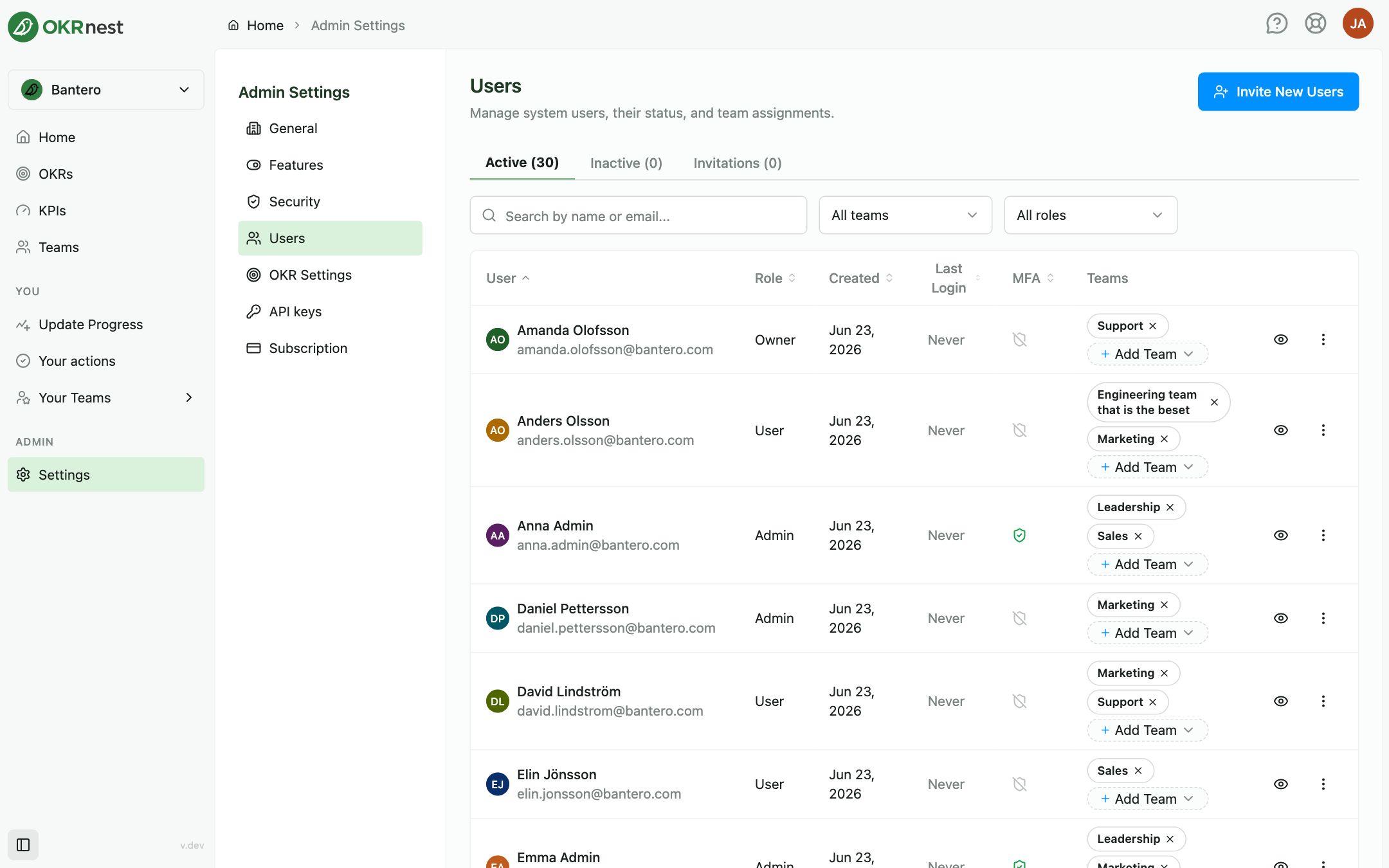
Tabs
| Tab | Contents |
|---|---|
| Active | Current members who can sign in |
| Inactive | Deactivated accounts |
| Invitations | Pending email invites |
Each tab shows a count in the label, for example Active (12).
Inviting new users
- Click Invite New Users
- In the Invite Users dialog, enter Email Addresses (one per line)
- Choose a Role:
- User: Standard access to their own teams
- Admin: Can manage organisation settings, users, and teams (not subscription or ownership)
- Optionally assign Teams (optional) with Select teams...
- Submit
Invitees receive an email with a join link that is valid for 7 days. They can register or sign in and complete MFA if your organisation requires it.
Owner is not assigned through invite. Ownership transfer is a separate step (see below).
Active users table
Columns are User, Role, Created, Last Login (or Never), MFA (enabled or not), and Teams.
Use Search by name or email..., and narrow the list with the All teams and All roles filters.
Team assignment
- Each user's teams appear as badges. Click × on a badge to remove them from a team
- Click Add Team and pick from the dropdown to assign membership
Team membership controls which team OKRs and check-ins a person can edit and which key results they can own.
User details
Click View user details (the eye icon) to open a profile with the user's teams, the key results they own, and the KPIs they own. Useful for capacity planning and finding who to nudge for updates.
Row menu
Open the menu at the end of a row for:
- Deactivate user removes access while keeping history. You cannot deactivate the organisation owner or yourself
- Activate user restores a previously inactive account (Inactive tab)
- Change role promotes a User to Admin or demotes an Admin to User. Confirm with your password in the Promote to Admin or Demote to User dialog. Owners cannot be changed here
- Remove from organisation permanently removes a user from the workspace. This is stronger than deactivation
- Transfer ownership (Owners only) hands the organisation to another active user. This requires your password and cannot be undone; you become an Admin
Invitations tab
Pending invites show Email, assigned Teams, Invited date, and Invited By.
Actions:
- Resend invalidates the current invitation and sends a new one, valid for another 7 days
- Revoke cancels a pending invite
Empty state: No pending invitations
Roles at a glance
| Role | Typical access |
|---|---|
| Owner | Everything, including subscription management and ownership transfer |
| Admin | Organisation settings, features, users, teams, API keys, and viewing the subscription |
| User | Participate in their own teams; no admin settings |
Permissions
The Users section requires Admin or Owner access. Only Owners can transfer ownership and manage the subscription.
Tips
- Assign teams at invite: New users land in the right OKR context on day one
- Deactivate instead of remove: Preserves OKR history and the audit trail when someone leaves
- Review the Inactive tab quarterly: Clean up accounts that should be removed entirely
- Use user details before escalations: See which key results someone owns before asking them to update