

Updates are how you record progress on your key results. Each update captures a value, a traffic light, the last day included, and an optional comment. You can update key results from the Update tab in a team's OKRs section, from the Update Progress page, or while running a check-in.
Where to update
- Team Update tab: Open your team, select a cycle period, and switch to the Update tab. You'll see every key result in the cycle grouped by objective.
- Update Progress page: Open Update Progress from the sidebar (or the centre button on mobile). The OKRs tab lists only the key results you own across all your teams, grouped by team and cycle, and the KPIs tab lists the KPIs you own.
- Check-ins: Each key result in a check-in has an Update progress action that uses the same fields.
All three use the same update dialog.
The key result row
Each key result is a row showing its number and title, a lifecycle badge when it is completed or abandoned, the owner, when it was last updated, and a reminder such as Update in 3 days, Update today, or 5 days overdue based on your team's check-in cadence. Click the title to open the key result's status sheet.
The button on the right reads:
- Add update: Opens the update dialog
- Updated: You've already saved an update in this session
- Completed: The key result is done; click it to Reactivate
- Automatic: The value is set by an API integration. You can still open the dialog to add a comment or change status
Update all
Click Update all at the top of the Update tab or the Update Progress page to step through every key result that needs a value, one dialog after another. Use Add & next to save and move on, Skip to leave one unchanged, and Save & Close on the last one. Completed, abandoned, and automatic key results are left out.
The update dialog
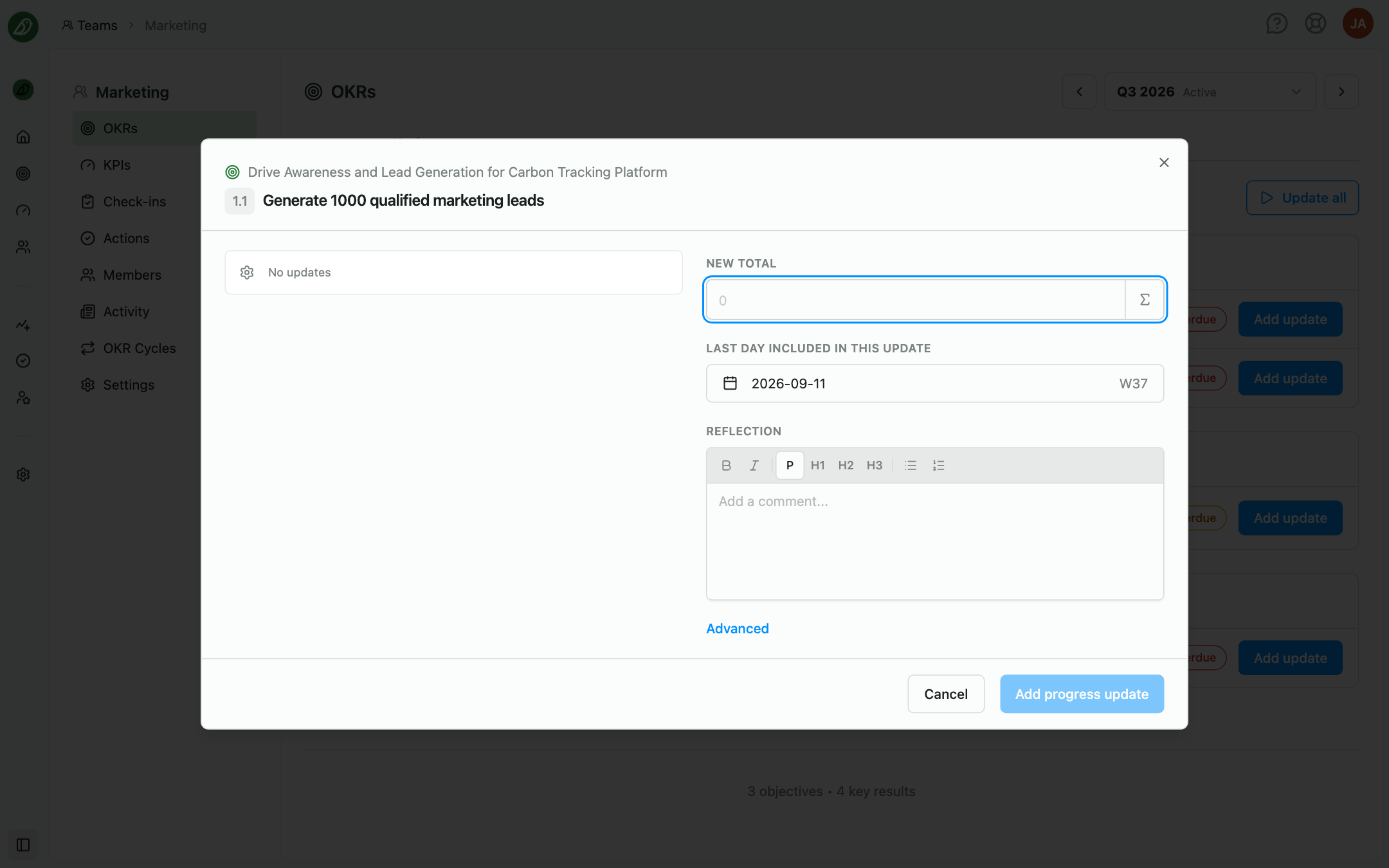
The left side shows the key result's progress graph and the history of previous updates and comments. The right side holds the fields:
New total or Change since last update: Enter either the new absolute value or the change since the last update. The toggle next to the field switches between the two modes; the placeholder shows the last recorded value so you know where things stand. Key results set to Incremental (delta) in their settings open in change mode by default.
Last day included in this update: The final day covered by the figures you enter, not the day you submit the update. Click the date button to pick a day. It defaults to the date of your most recent update.
Traffic light / outlook: (Shown when the Key result status feature is enabled.) Choose Auto to let OKRnest set the light from the key result's pace, or override it with Not Started, On Track, Behind, or Critical. Manual picks are stored; choosing Auto again clears the override. See OKR Status & Traffic Lights.
Reflection: Add optional context about your progress, blockers, or next steps.
Advanced: Reveals the lifecycle Status dropdown (Active, Completed, Abandoned), described below.
Click Add progress update to save, or press Cmd+Enter (Mac) or Ctrl+Enter. Each key result is saved individually.
If the key result tracks a KPI owned by another team, or its value is set only by integrations, the value fields are hidden and the dialog explains that you can add a comment and status only.
Editing or deleting an update
Open a previous entry from the history on the left of the dialog, or from the Updates list in the key result's status sheet. Editing shows Editing update from {date} by {name}; save with Save changes or Cancel to keep the original. Deleting an entry removes its measurement as well.
Completing or abandoning a key result
Beyond traffic lights, every key result has a lifecycle status: Active, Completed, or Abandoned.
- Active is the default. The key result is open for updates and counts towards progress.
- Completed means the work is done. The key result stays visible on update pages with a green Completed button, and it keeps counting towards objective progress at its current value.
- Abandoned means the key result is no longer pursued. It is removed from update pages, shown crossed out in other views, and excluded from progress calculations. Its weight is not changed, so reactivating it restores its full contribution.
You can change the status in two places:
- The update dialog: Click Advanced below the comment field to reveal the Status dropdown. The change is saved with the update button, and marking a key result as completed or abandoned does not require a value or comment.
- Key Result Settings: Open the key result's settings panel on the Create tab and use the Status dropdown under Basics. The status is only available once the key result has been saved.
To bring a completed key result back, click its Completed button on an update page and choose Reactivate, or set the status back to Active in either dropdown.
Viewing history
Click a key result's title to open its status sheet with a progress chart, the current value and status, the Updates history (where you can edit or delete individual entries if you have permission), any Supporting Key Results from child teams, linked Actions, and an Edit tab for its settings.
Update reminders
When your team has a check-in cadence, each key result row shows how many days remain until the next update is due. Owners also receive Key result update reminders by email unless they turn them off under Profile > Notifications. Key results whose values come only from integrations are excluded from reminders.
Tips for updating key results
- Update regularly: Frequent small updates are more useful than infrequent large ones
- Use change mode for incremental metrics: If you're tracking things like revenue or sign-ups that accumulate, enter just the new amount
- Trust Auto, override when you know better: The automatic traffic light follows the numbers; override it when you have context the numbers don't show, and say why in the reflection
- Add comments when the status changes: A brief note explaining why something moved from On Track to Behind gives your team lead actionable context
- Set the data date: If you're recording data from a previous day or week, adjust the date so your progress graph stays accurate