

Cycles are time periods (such as a quarter or month) during which your team defines and tracks OKRs. Each team has its own cycles. A cycle can be Draft, Active, or Archived, which controls whether OKRs can be edited and whether updates and check-ins are available.
Cycle statuses
- Draft: OKRs are being prepared. The team can edit objectives and key results on the Create tab, but the Update and Status tabs and the Check-ins section stay locked until the cycle is published.
- Active: The live period. OKRs can be updated and check-ins can be created.
- Archived: Read-only. Past data is preserved for review but cannot be edited unless you unarchive the cycle.
Cycle length and custom cycle types
How long a team's cycles run is set on the team (Cycle Length when creating the team, or later under the team's Settings section). Choose a standard length such as monthly, quarterly, or yearly, or one of the organisation's custom cycle types.
Admins define custom cycle types under Admin Settings > OKR Settings > OKR cycles with New cycle type. Each type has a name and its own list of named periods, which is useful for fiscal years or planning calendars that don't start in January.
Changing a team's cycle length only affects cycles created from then on; existing cycles keep their names and dates.
Creating a new cycle
Cycles are created from the Create tab when you work in a period that does not have a cycle yet:
- Open your team's OKRs section
- Use the period selector above the tabs to choose or move to the period you want (Previous cycle and Next cycle arrows, or the Select period dropdown)
- Open the Create tab
- Add objectives and key results, then click Save as draft or Publish
Save as draft creates the cycle in draft status so you can keep collaborating before the team goes live. Publish saves your OKRs and sets the cycle to Active immediately.
You can also use Cmd+Enter (Mac) or Alt+Enter to save quickly.
Selecting a period
The period selector shows the current cycle label and its status (Draft, Active, or Archived). The URL includes ?period=YYYY-MM-DD so you can bookmark or share a specific period.
By default, OKRnest opens the period that includes today's date, preferring an Active cycle over Draft or Archived when several overlap.
Publishing and saving a draft cycle
On the Create tab, the buttons at the top right reflect the cycle state:
| Cycle state | Actions |
|---|---|
| New or draft, with unsaved edits | Discard, Save as draft, Publish |
| Draft, nothing unsaved | Publish |
| Active, with unsaved edits | Discard, Save changes |
| Active and past its end date | This cycle has ended, Archive cycle |
Archiving a cycle
When a cycle period has ended, archive it to keep history without accidental edits:
- On the Create tab, click Archive cycle once the active cycle has ended, or
- Open OKR Cycles in the team's section menu and choose Archive cycle from the row menu, or
- On Update Progress, ended cycles show an Archive button
Confirm in the Archive cycle? dialog. Archived cycles become read-only but can be unarchived later.
Unarchiving a cycle
To make an archived cycle editable again:
- On the Create tab, the Cycle Archived notice has an Unarchive Cycle button, or
- On the OKR Cycles page, open the row menu and choose Unarchive cycle
Confirm in the Unarchive cycle? dialog. The cycle becomes active again.
OKR Cycles page
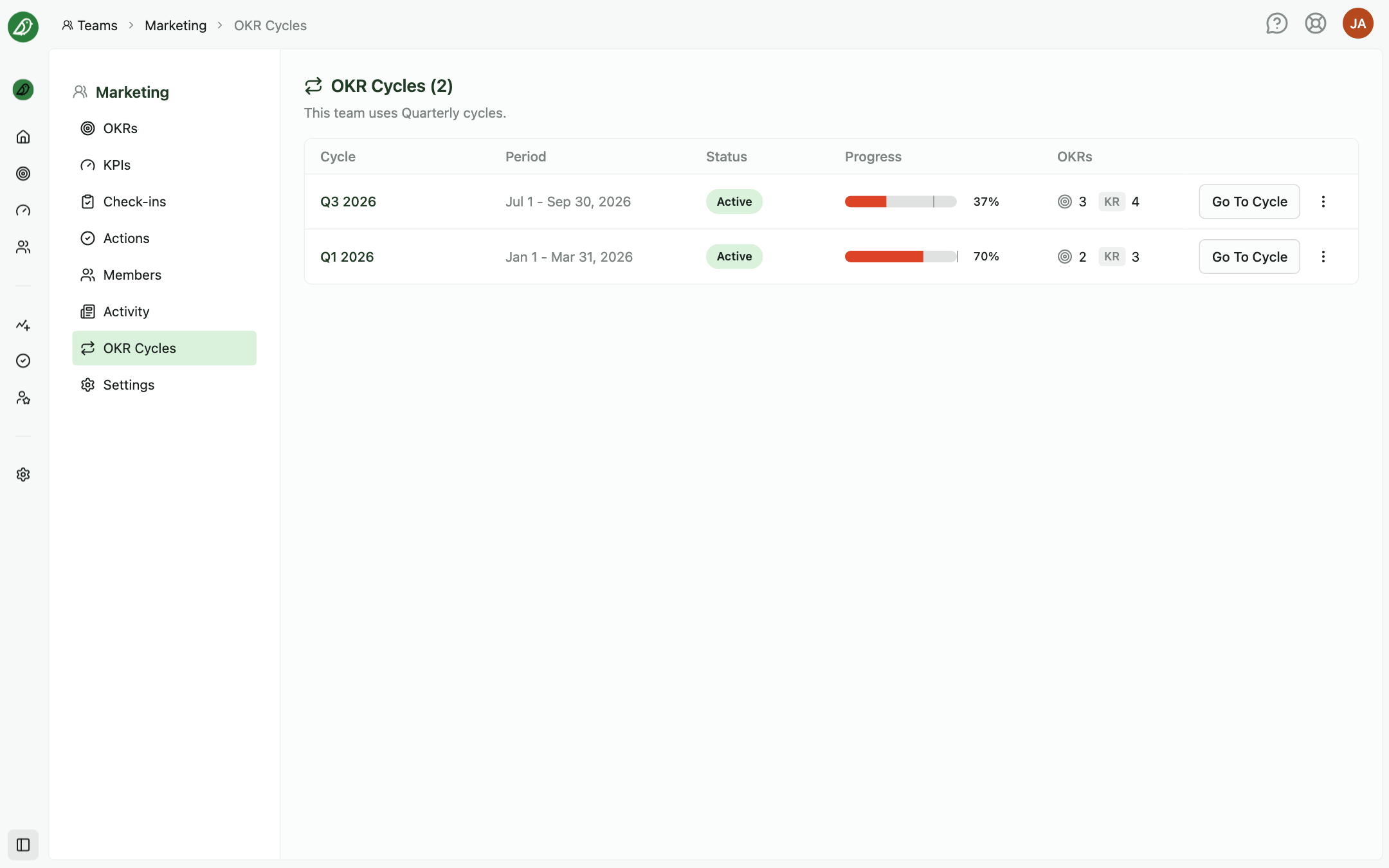
The OKR Cycles section lists every cycle for the team:
- Cycle name and Period dates
- Status badge (Draft, Active, Archived)
- Progress and OKRs counts (objectives and key results)
- Go To Cycle opens the team's OKRs section for that period
From the row menu (when you have permission), you can Archive cycle, Unarchive cycle, Edit cycle (move it to a different period), or Delete cycle.
Editing a cycle's period
Edit cycle opens a dialog where you Select new cycle timespan. The available periods always follow your team's current cycle length (for example a quarterly team can only pick quarters), so you can never switch a single cycle to a different cadence. To change how long cycles run, update the Cycle Length in the team's Settings instead. Periods already covered by another cycle are unavailable, and the end date is set automatically from the start date. Archived cycles must be unarchived before they can be edited.
Deleting a cycle
Delete cycle permanently removes all OKRs, check-ins, and status updates for that cycle. Only organisation Admins and Owners can delete cycles. You must type DELETE in the confirmation dialog to proceed.
Permissions
| Action | Who can do it |
|---|---|
| Create, edit, publish OKRs | Team members, or organisation Admins and Owners |
| Archive, unarchive, edit cycle period | Same as editing OKRs |
| Delete cycle | Organisation Admins and Owners |
| Define custom cycle types | Organisation Admins and Owners |
What each area allows by cycle status
| Area | Draft | Active | Archived |
|---|---|---|---|
| Create tab | Edit OKRs | Edit OKRs | Read-only (unarchive to edit) |
| Update tab | Locked until published | Updates allowed | Read-only |
| Status tab | Locked until published | Status view | Read-only |
| Check-ins | Not available | Check-ins allowed | View existing check-ins |
Tips for managing cycles
- Use draft for collaboration: Publish only when the team is ready to report progress
- Archive ended cycles: Keeps the period selector tidy and prevents accidental edits to old data
- Plan the next period early: Create a draft for the upcoming quarter while the current cycle is still active
- Use OKR Cycles for oversight: Leads can scan progress and status across all periods from one list