

The Alignment map shows how objectives and teams relate across your organisation. It helps you see contribution paths, parent and child team structure, and where goals might be orphaned or overloaded.
Note: Requires the Align OKRs feature, enabled under Admin Settings > Features.
Opening the map
- Open OKRs from the sidebar
- Select the Alignment map tab (URL:
/okrs#alignment)
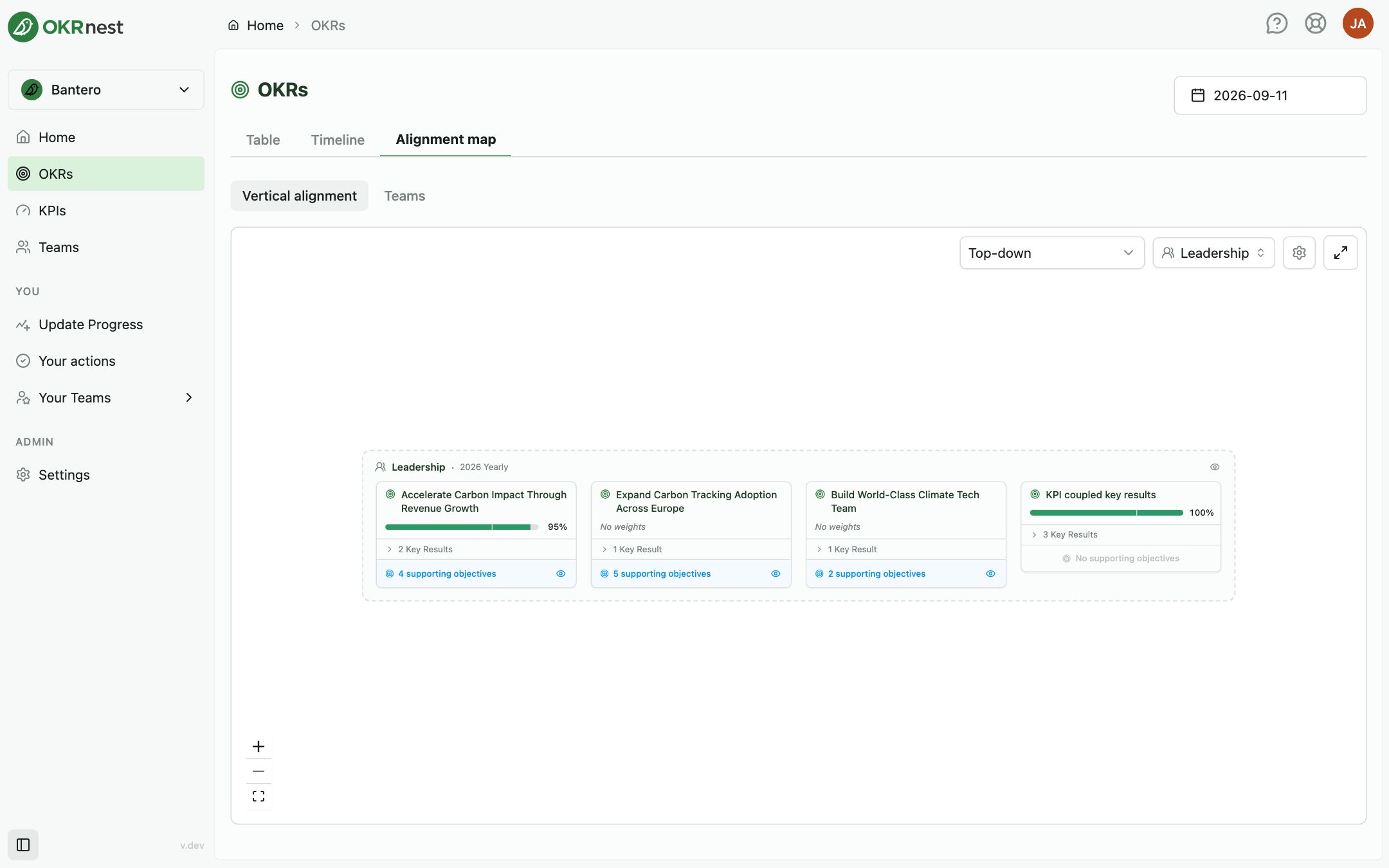
The map uses the same date as the rest of the OKRs page. Change the date in the header to view alignment on a historical day.
View modes
A toggle at the top switches between two layouts:
Vertical alignment
Shows objective trees and Contributes to links between teams for a chosen anchor team.
- Top-down: Start from a parent or leadership team and see what contributes upward into its objectives. Any team that has child teams can be the anchor.
- Bottom-up: Start from a team that has a parent team and see how its objectives connect upward. Only teams with a parent appear in the team picker.
Use the direction dropdown (Top-down or Bottom-up) next to the team selector. Switching direction resets the selected team.
Select the anchor team from the picker (Search teams...). The chart expands objectives and key results; where an objective has many links, a Supporting Objectives or Contributes To dialog lists them instead of drawing every edge.
Teams
Shows your organisation's team hierarchy as an interactive chart (pan and zoom). Expand team nodes to see their objectives for the selected date. Useful for understanding org structure plus OKR placement in one view.
Interacting with the map
- Pan and zoom to move around large graphs
- Expand nodes to reveal objectives and key results
- Enter fullscreen opens a focused view; press Escape or click Exit fullscreen to leave
- Click through to team pages where links are offered
If no teams exist yet, you'll see No teams found. Create a team to see alignment. Top-down needs at least one team with child teams; bottom-up needs at least one team with a parent.
How this relates to Contributes to
Links on the map come from Contributes to relationships set on the Create tab, and from key results linked to a parent key result. The map does not create links; it visualises them. To add or change links, edit objectives in the team's OKR editor. See Contributing & Supporting OKRs.
Tips
- Pick the right direction: Executives often prefer Top-down from the company team; squad leads may prefer Bottom-up from their own team
- Match the snapshot date: Alignment on the last day of a quarter can differ from mid-quarter if OKRs changed
- Use Teams mode for reorganisations: When parent teams change, the Teams view clarifies the new hierarchy before drilling into objectives
- Validate after planning: After setting Contributes to links, open the map to confirm nothing important is missing