

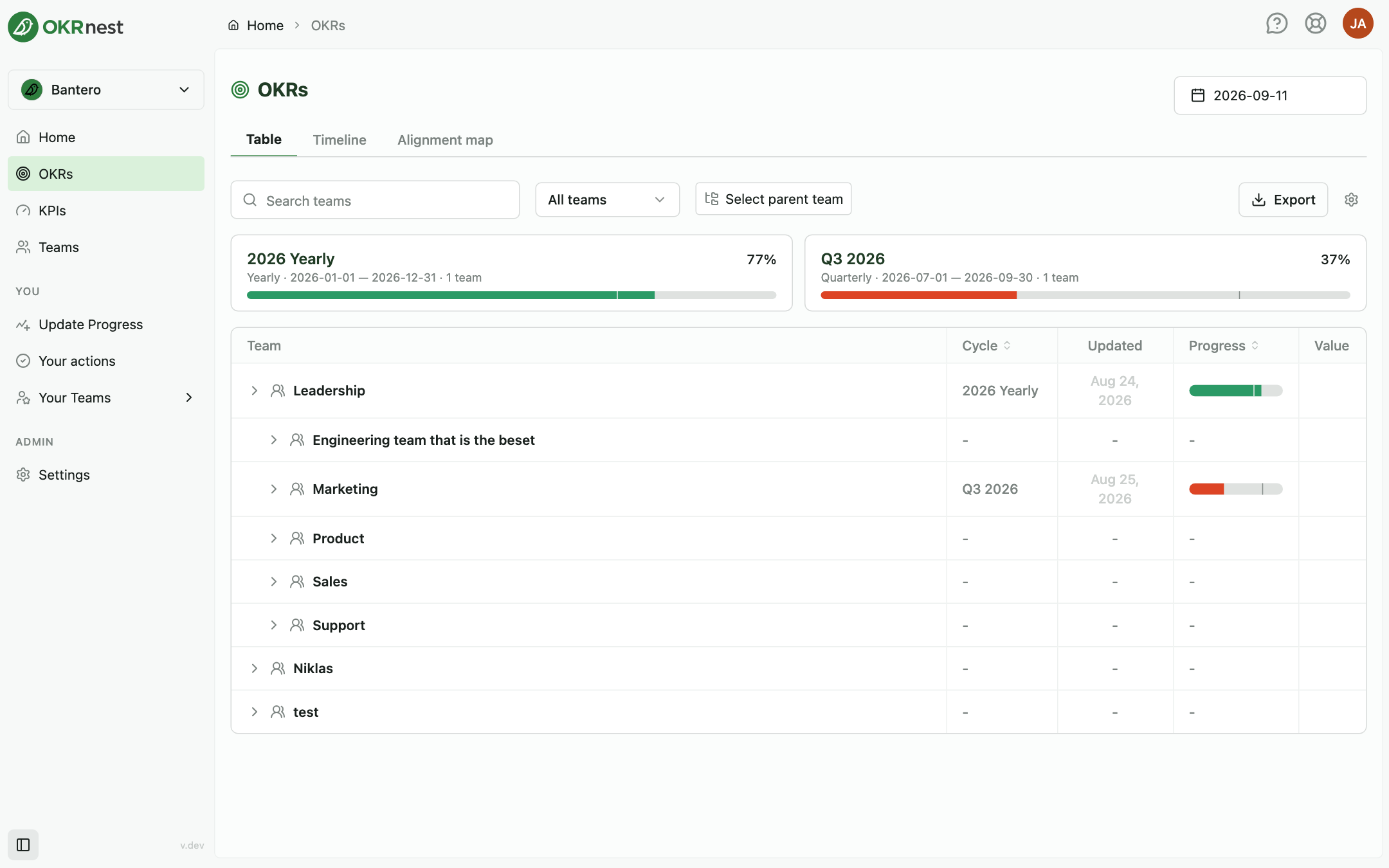
The OKRs page in the sidebar gives you an organisation-wide view of OKRs. Use it for leadership reviews, PMO snapshots, and comparing teams without opening each team workspace separately. (This page was previously called Explore; old /explore links still open it.)
Open OKRs from the main sidebar. If your organisation has renamed OKRs in its terminology settings, the page carries that name instead.
Picking a date
The date picker in the page header controls which day you're looking at. Click the calendar control (it shows the selected date, or Pick a date) to choose a day.
All cycle data, progress, and OKR content on the page reflect OKRs as they existed on that date. Change the date to compare last month with today, or to prepare a board report for a specific point in time.
Tabs
The page has three tabs (reflected in the URL hash):
| Tab | Purpose |
|---|---|
| Table | Sortable, filterable grid of teams, objectives, and key results |
| Timeline | How progress developed over time across teams |
| Alignment map | Visual graph of alignment (requires Align OKRs; see Understanding the Alignment Map) |
If Align OKRs is not on your plan, the Alignment map tab shows an upgrade prompt instead of the map.
Table tab
Finding teams
- Search teams filters the list by team name
- The All teams dropdown lets you show only certain teams; use Clear selection to reset
- Select parent team shows only the children of one team. Useful for viewing one branch of the org tree; Clear removes the filter
Expanding rows
Click a team row to expand its objectives, then expand an objective to see its key results. The arrow at the end of a team row opens that team's OKRs section for the same period. Empty search results show No teams found.
Summary cards
Above the table, summary cards group teams by cycle type (for example quarterly, monthly, or a custom cycle type) with progress bars and team counts for the selected date.
Column settings
Click Column settings (the gear control) to show or hide columns. Defaults differ on mobile (often Progress only) and desktop.
Available columns:
- Cycle, Cycle Status, Updated, Progress
- Under Key Results: Status, Value, From→To, Owner
- Under Alignment: Supported by, Contributing to (when Align OKRs is enabled)
Team-level headers Progress, Cycle, and Status are sortable.
Supported by and Contributing to
Enable these columns to see cross-team links without opening the alignment map. Objective rows show counts such as Supported by 3 objectives or Contributing to 2 objectives; key result rows show how many supporting key results they have.
Exporting
On desktop, an Export button next to the column settings downloads the visible teams as an Excel file or PowerPoint deck. See Exporting OKRs.
Timeline tab
The Timeline tab plots progress over time for the selected teams against the expected pace, so you can spot trends, acceleration, or stagnation across the organisation. Use the same Search teams, team dropdown, and Select parent team filters as on the Table tab.
Permissions
Any member of the organisation can open the OKRs page. Editing OKRs still happens on each team's OKRs section; this page is primarily read-only analysis. Exports are limited to the teams you belong to unless you are an admin or owner.
Tips
- Set the date first: Leadership reviews should start by locking the snapshot date before interpreting progress
- Filter to a subtree: Use Select parent team when presenting one division's OKRs
- Choose columns for the audience: Turn on alignment columns during planning; hide detail columns for executive summaries
- Pair Table with Alignment map: Use the table for numbers, then switch tabs to validate strategic links