

Admin Settings is where Admins and Owners configure the organisation. Open Settings from the sidebar (desktop) or Admin Settings from the mobile settings menu. The sections are General, Features, Security, Users, OKR Settings, API keys, and Subscription.
General
The General section defines organisation-wide defaults that affect how OKRnest looks and how numeric key results display for every team. Its subtitle reads Configure your organisation settings and preferences.
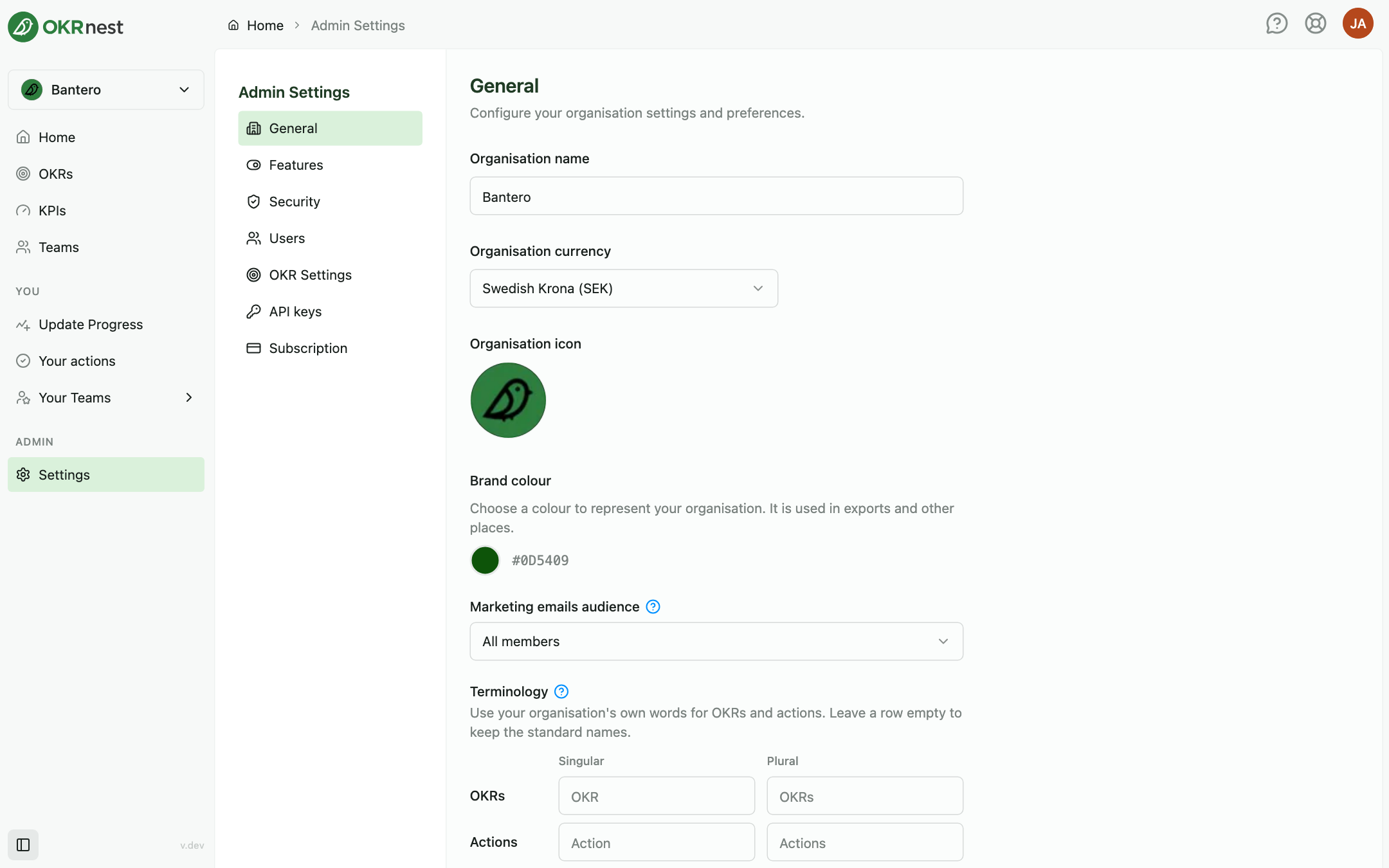
Organisation name
The Organisation name is the workspace name shown in the organisation selector and across the product. Update it when your company rebrands or when a division workspace needs a clearer label.
Organisation currency
Organisation currency sets the symbol and formatting for Currency type key results and KPIs everywhere in this organisation. Changing currency does not convert existing values; it changes display only.
Organisation icon
Click the Organisation icon avatar to upload a logo or image that represents the organisation in the organisation selector and on mobile. Drag and zoom to frame it, then save. Remove icon returns to the default initials.
Brand colour
Brand colour controls the primary accent colour for your organisation in the UI, and is also used in exports and shared views. Use the colour picker; a hex value is shown for precision. If you do not set a colour, OKRnest uses its default green.
Marketing emails audience
Marketing emails audience controls which members receive non-transactional product email from OKRnest: All members (the default), Admins and Owner only, or Owner only. Transactional email is always sent, and each member can opt out personally. For full detail, see Marketing Emails Audience.
Terminology
Terminology lets you call OKRs and actions what your organisation calls them, for example Goals and Initiatives. There are two rows, OKRs and Actions, each with a Singular and a Plural field.
- Fill in both forms of a row to rename that concept. Each word can be up to 16 characters and may contain letters and digits only, with a space or hyphen between words (for example Key Results or Sub-goals).
- Leave both fields of a row empty to keep the standard names. Clearing both fields and saving returns the organisation to the default.
- A row with only one of the two forms filled in, or with a word that breaks the rules above, cannot be saved; the form points this out and the save button stays disabled until you fix or clear the row.
The words you set are used throughout the app, in the sidebar, in exports, and by OKRnest's AI features and API integrations. Help articles always use the standard names.
Saving changes
Click Save changes at the bottom. On success the button briefly shows Changes saved. You can change several fields and save them together.
Features
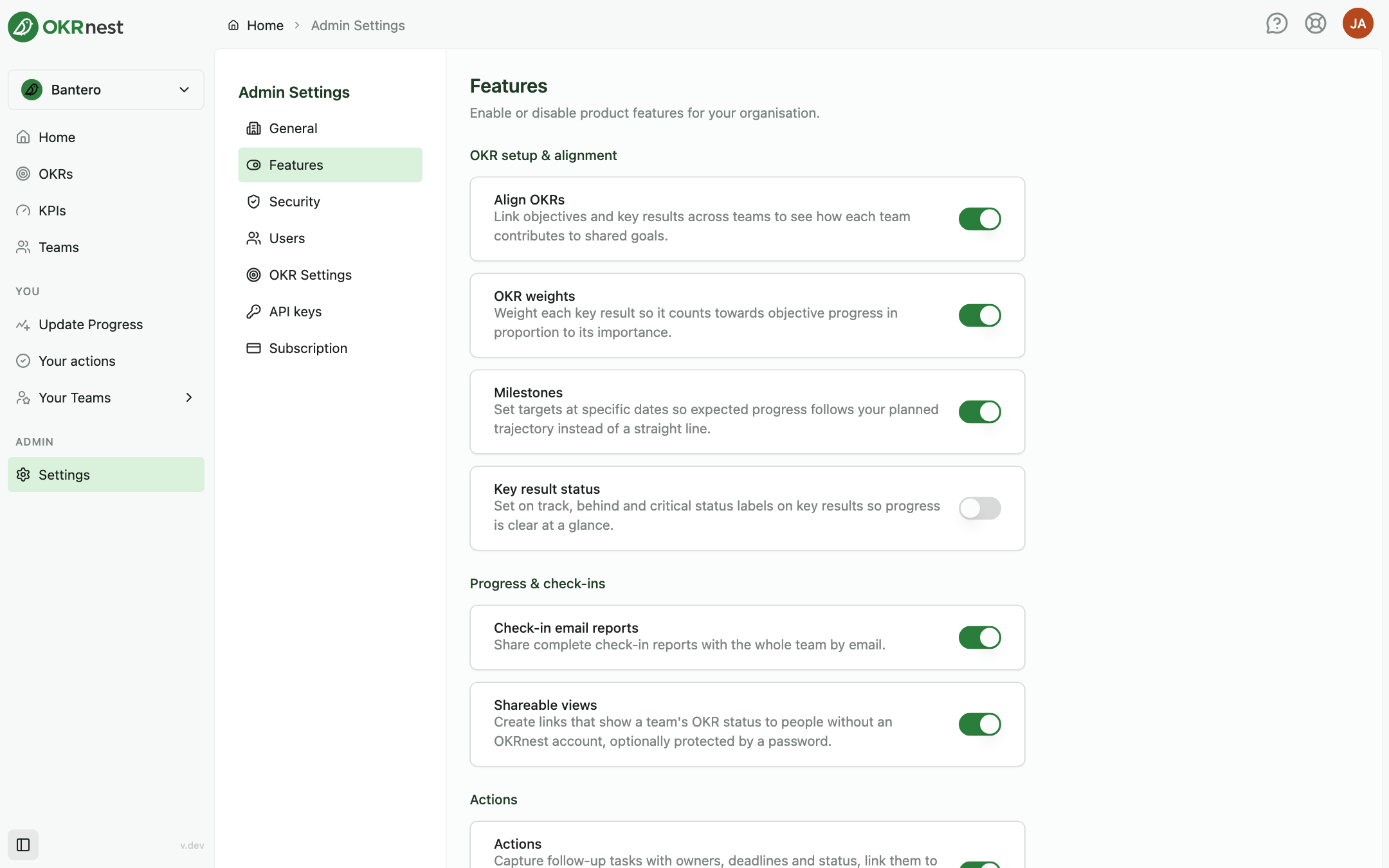
Features lists the optional modules, grouped as OKR setup & alignment (Align OKRs, OKR weights, Milestones, Key result status), Progress & check-ins (Check-in email reports, Shareable views), Actions, AI (AI Assistant), and Integrations & API (OKRnest API). Switch each one on or off for the whole organisation. Modules that are not part of your plan are marked Not available on your plan.
Security
Security holds the Require two-factor authentication switch. When it is on, every user must set up MFA on their next login, and users switching into this organisation from another need MFA before they can access it. The section also lists Connected apps (external applications that members have authorised through OAuth, with the option to revoke them) and Shared view links (every public status link created by any team, with the option to delete them).
Users
Invite people, assign teams and roles, and deactivate or remove accounts. See Managing Users.
OKR Settings
The General tab sets the Status colour thresholds that decide when computed progress is On track, Behind, or Critical; see OKR Status & Traffic Lights. The OKR cycles tab defines custom cycle types with their own named periods, which teams can pick as their cycle length; see Managing Cycles.
API keys
API keys lets you create and revoke keys that external integrations use to call the OKRnest API on behalf of your organisation. Each key has a name, permissions (read, write, delete, and member access), and an optional expiry. Creating keys requires the OKRnest API feature to be enabled. A link to the API documentation is provided in the section.
Subscription
Admins can view the current plan, active users, teams, and AI credit usage. Owners can upgrade, downgrade, buy seats, and manage billing from the Subscription, Plans, and Seats tabs.
Tips
- Set currency before the first financial KR: Avoid confusion if teams already entered values assuming another symbol
- Brand colour for a white-label feel: Match your internal tools so OKRnest feels native in all-hands decks
- Review Features when onboarding: Switch off modules your organisation does not use yet so the interface stays simple