

Check-ins capture more than numbers. Notes add context at the team or key-result level. Actions (when enabled for your organisation) record follow-up tasks linked to the check-in, the team, or a specific key result.
Note: Actions require the Actions feature to be enabled under Admin Settings > Features.
Notes
General notes (overview)
On the overview, open the Add note card and type in the editor (placeholder: Add general notes for this check-in...). Once text exists the card is titled Check-in notes.
General notes are not tied to a single key result. Use them for meeting summaries, team mood, or topics that span multiple OKRs.
AI summary
With the AI Assistant enabled, the Generate check-in summary panel in the notes card drafts a summary of the team's progress since the last check-in. Use Add summary to notes to paste it into the notes, Regenerate for another attempt, or Close to dismiss it.
Key result notes
In each key result panel, open Add note and add text specific to that key result (placeholder: Add a note for this key result...).
Previous notes
The Notes from last check-in card on the overview (titled with the previous check-in's date once one exists) shows what was written last time, or No notes if nothing was recorded. This helps you compare what changed since the last meeting.
Actions during a check-in
When Actions is enabled, the overview has a Team Actions card and each key result panel has a Key result Actions card.
Adding an action
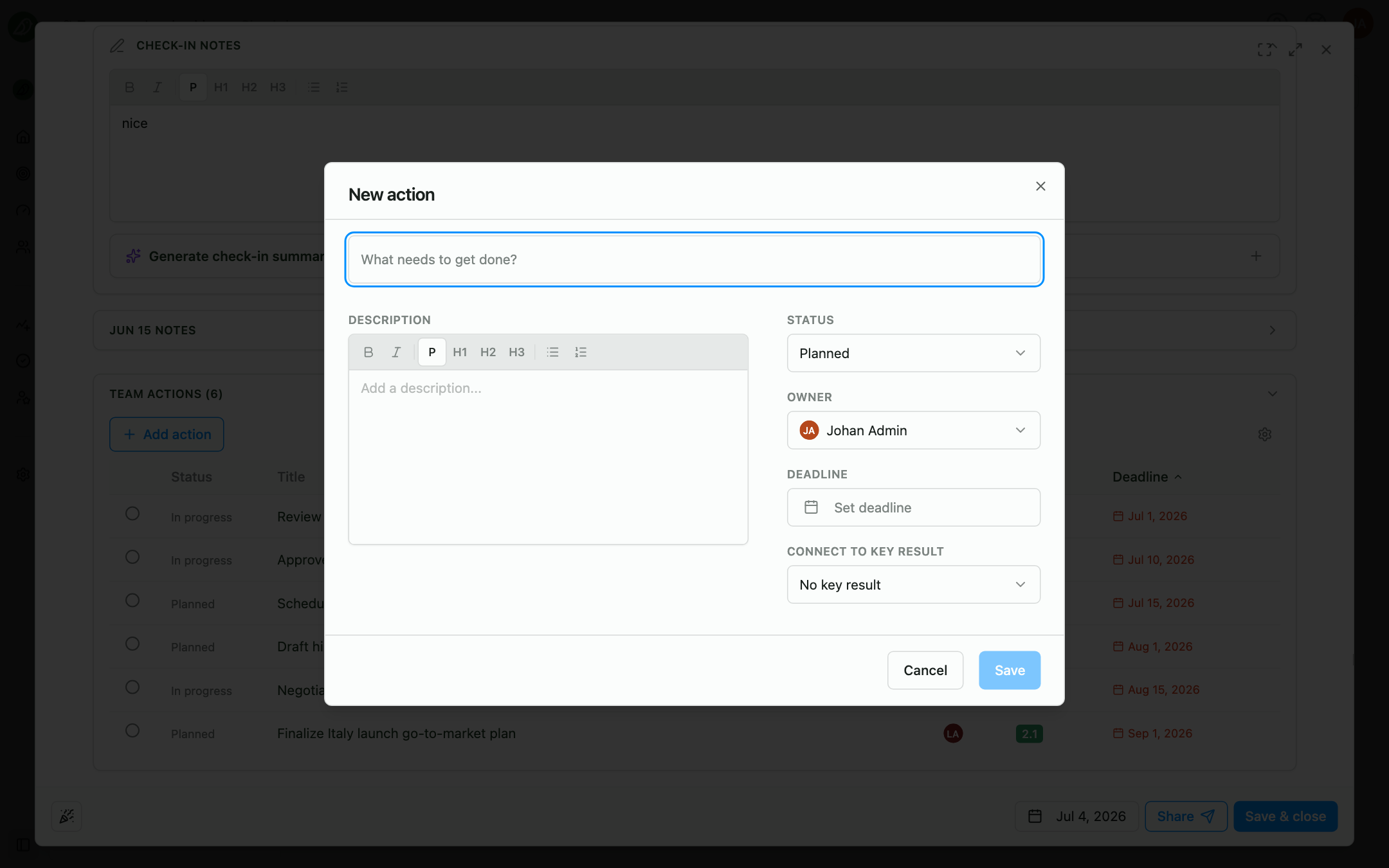
- Click Add action in the card
- In the New action dialog, enter a title (What needs to get done?)
- Optionally add a description, set an Owner, Set deadline, connect it to a key result, and choose a status (Planned, In progress, or Done)
- Click Save
If the check-in has not been saved to the server yet, OKRnest saves it first automatically so the action can be linked.
Linked actions list
Each card lists the open actions already tied to that scope. You can:
- Tick an action to mark it done, or open it to change status, owner, or deadline
- Use the card's display settings to Show completed actions
- Delete an action (confirmation: Delete action?)
On the overview, the list shows team-wide actions (not tied to a specific key result). In a key result panel, the list is filtered to that key result.
Other cards in a key result panel
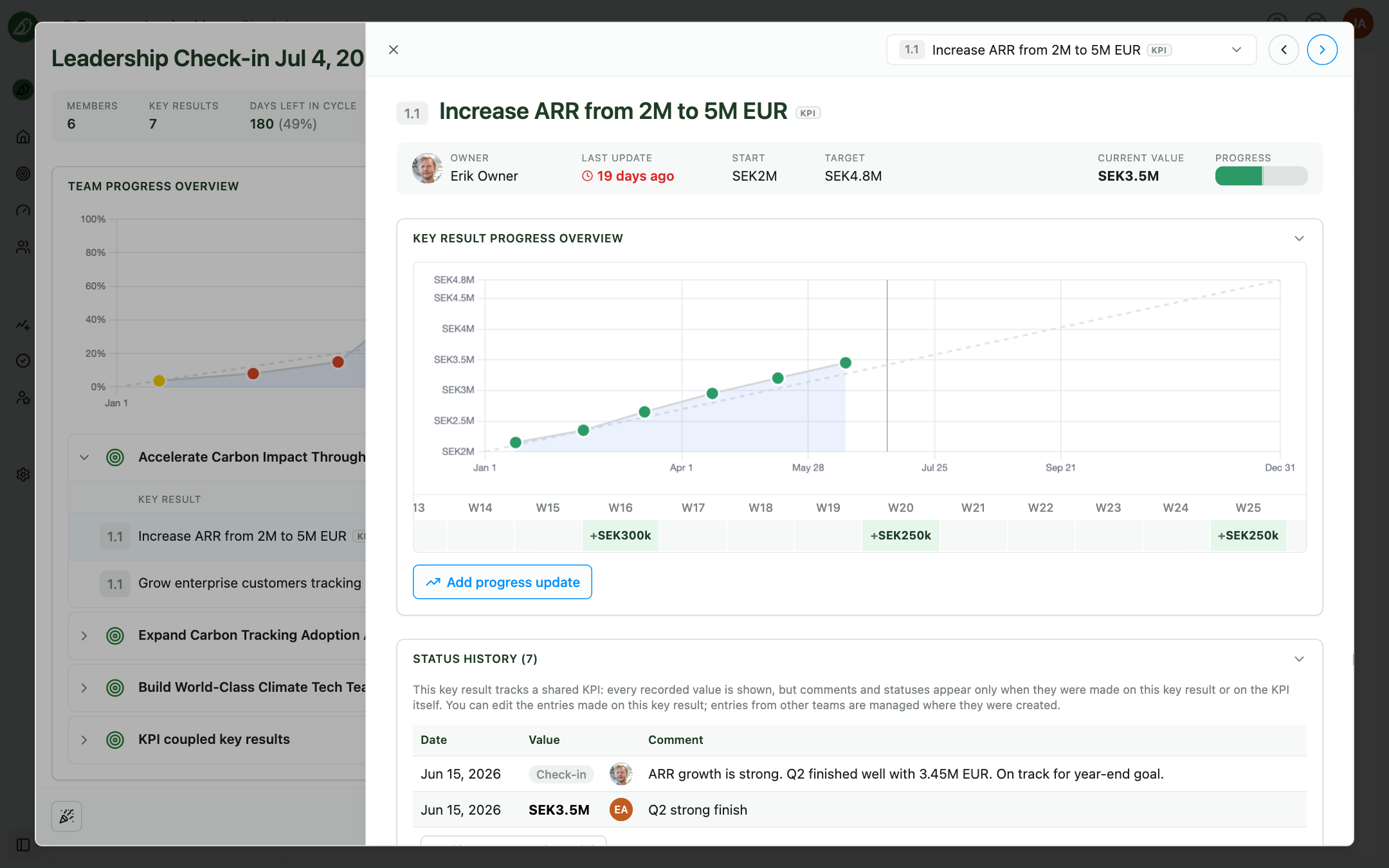
- Key Result Progress Overview: Progress chart for the key result
- Status history: Past updates with values, statuses, and comments
- Supported by: Objectives or key results that align with this one (when alignment is enabled)
Where actions live after the check-in
Actions created during a check-in also appear on:
- The team's Actions section, as a board or a table
- Your actions in the sidebar, for items you own
They remain linked to the key result or team scope you chose during the check-in.
Tips
- Separate signal from noise: Use key result notes for blockers and wins; use general notes for decisions that affect the whole team
- Create actions for commitments: If someone says "I'll fix the API by Friday," add an action with an owner and deadline while the group is still in the meeting
- Skim previous notes: A quick scan of last check-in's notes avoids repeating the same discussion
- Update progress in the same pass: Use Add progress update in each key result panel so numbers and narrative stay in sync