

OKRnest exposes its data through a REST API so that other systems can read and write OKRs and KPIs. There are two ways to grant access:
- API keys belong to the organisation and are meant for server-to-server integrations such as BI tools, data pipelines, and automation platforms
- Connected apps are applications a person authorises to act on their behalf, such as an AI assistant or an MCP client, using the standard OAuth flow
Note: Both require the OKRnest API feature, enabled under Admin Settings > Features. It is available on paid plans.
API keys
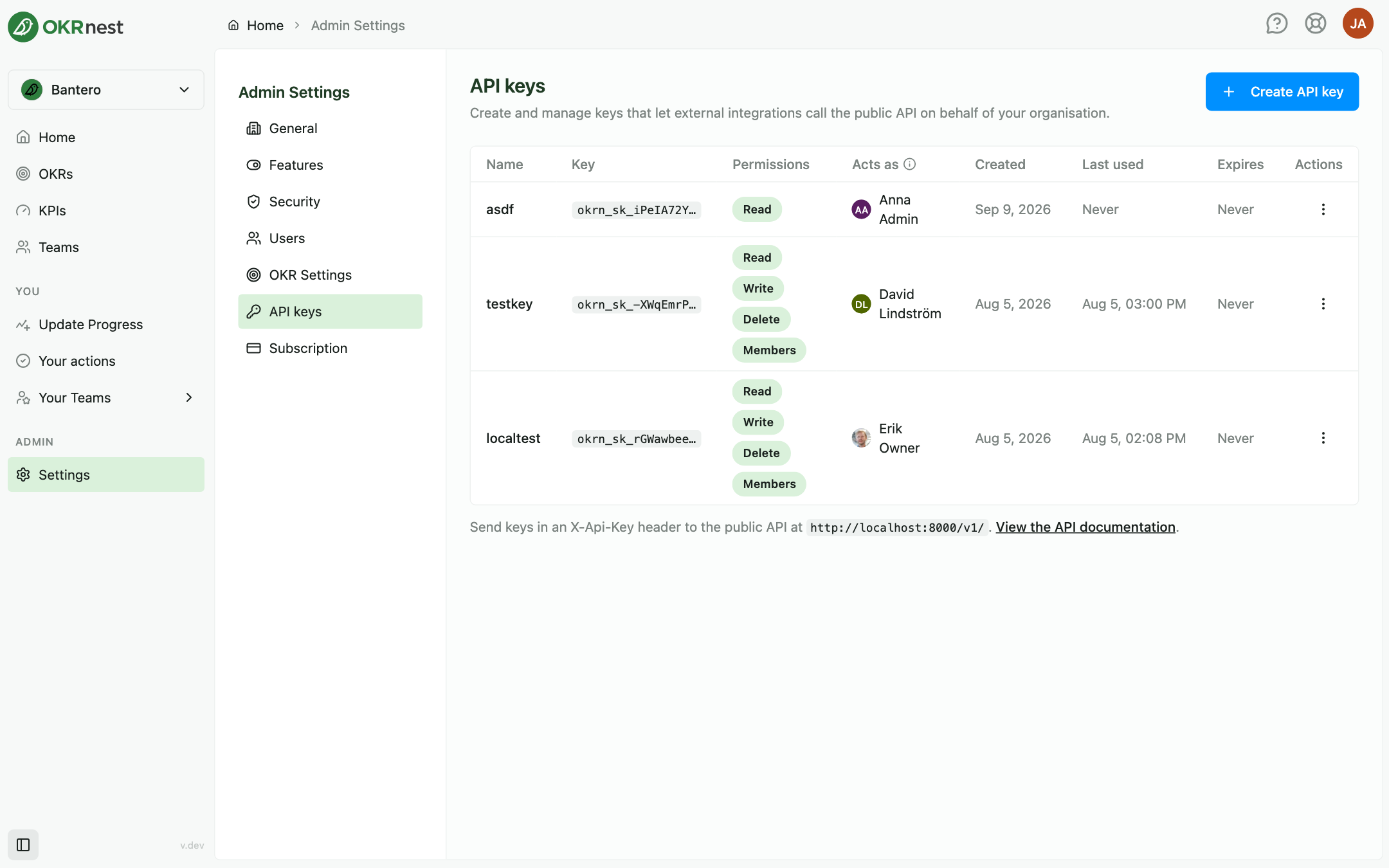
Open Admin Settings > API keys. The section lists every key with its Name, a masked Key prefix, Permissions, Created, Last used, and Expires, and links to View the API documentation.
Creating a key
- Click Create API key
- Enter a Name that identifies the integration, for example BI integration
- Tick the Permissions the integration needs:
- Read: Read OKR and KPI data
- Write: Create and update OKR and KPI data
- Delete: Delete OKR and KPI data. Only grant it if the integration genuinely needs it
- Members: Read team and organisation member data
- Optionally set an Expiry date
- Create the key and copy the Secret key shown in the confirmation. This is the only time you'll see this key; store it in your integration's secret store
Revoking a key
Open the row's actions and choose Revoke key. The Revoke API key? dialog warns that revocation is immediate and any integration using the key stops working straight away.
If the OKRnest API feature is switched off later, existing keys stay listed but stop working until it is switched on again.
Connected apps
When an external application asks for access, OKRnest opens a page titled {App name} wants to access OKRnest. It shows who you are logged in as, lets you pick the Organisation the app may access, lists the permissions requested, and offers Approve or Deny. Access is scoped to your own permissions in that organisation: an app cannot do more than you can.
Review and revoke your own authorisations under Profile > Security > Connected apps. Admins and owners see every member's authorisations under Admin Settings > Security > Connected apps, with who connected each app, its permissions, when it was last used, and when its access expires. Revoke access? cuts the app off immediately.
Terminology and the API
If your organisation has renamed OKRs or actions under Admin Settings > General > Terminology, the API and AI integrations receive those words too, so an assistant will talk about your goals in your own vocabulary.
Tips
- One key per integration: Revoking a leaked key then affects only one system
- Least privilege: Most reporting integrations need Read only; give Write to the systems that feed KPIs
- Feed KPIs automatically: Combine a Write key with Allow manual updates switched off on the KPI so the number comes from one source