

Alignment shows how team goals connect. In OKRnest you link objectives across teams with Contributes to, and link key results up to a parent team with Link to parent key result. Together these relationships appear on the organisation-wide OKRs page, the alignment map, status views, and check-ins.
Note: Both kinds of link require the Align OKRs feature to be enabled under Admin Settings > Features. Parent key result linking also needs your team to have a parent team in the hierarchy.
Contributes to (objective level)
Contributes to means this team's objective helps achieve objectives owned by other teams.
Setting contributes-to links
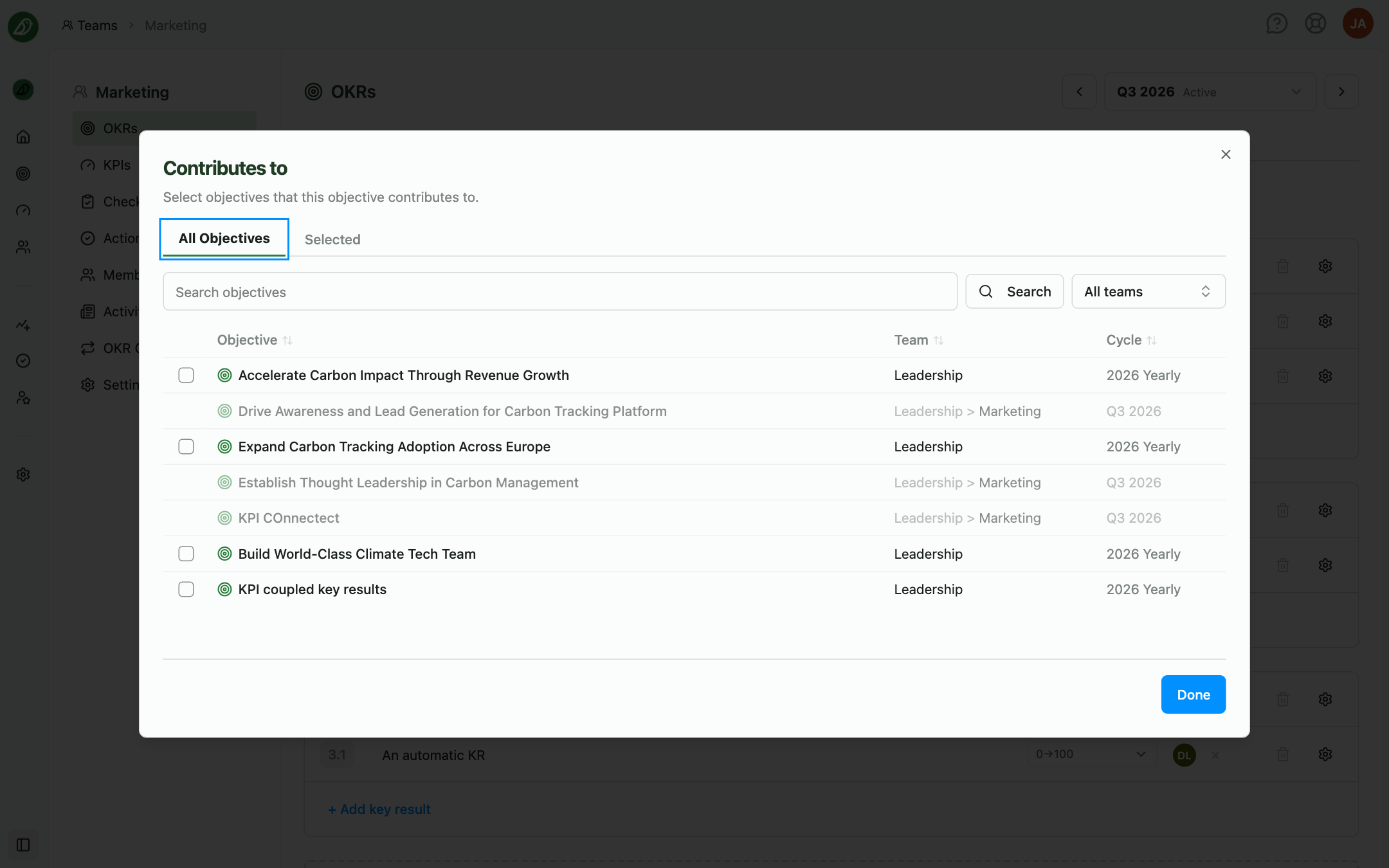
- Open your team's OKRs section and the Create tab for the cycle
- On the objective, open Objective settings (the gear icon in the objective header) and choose Contributes to (or Contributes to (N) if links already exist)
- In the Contributes to dialog (Select objectives that this objective contributes to.):
- Browse All Objectives or switch to Selected to review your choices
- Search objectives by title
- Filter by team using the All teams dropdown
- Select one or more objectives from other teams (objectives from your own team cannot be selected)
- Click Done
- Save your OKR changes with Save changes, Save as draft, or Publish
The menu item updates to show how many objectives are linked, for example Contributes to (2).
Only objectives from cycles that are active on the current cycle's start date appear in the list.
Removing links
Open the same dialog, deselect objectives on the Selected tab, click Done, and save.
Supported by (read-only relationships)
Supported by is the inverse view: which other objectives contribute to this one.
You do not set Supported by directly. It is calculated from other teams' Contributes to links pointing at your objective.
You'll see Supported by in places such as:
- The organisation-wide OKRs page table (enable the Supported by column in column settings)
- The Alignment map when expanding objective nodes
- The Supported by card on a key result in a check-in
For key results, Supported by also reflects child key results linked via Link to parent key result.
Link to parent key result (key result level)
When your team sits under a parent team in the organisation hierarchy, a key result can support a parent team's key result in the matching cycle period.
- On the Create tab, open Key Result Settings (the gear icon on the key result)
- Under Alignment, click Link to parent key result
- In the Choose parent key result dialog, pick the parent team's objective and key result
- Save your OKR changes
The parent team sees the link under Supporting Key Results in the key result's status sheet, and it is drawn on the alignment map. To remove it, open the same section and choose Remove parent key result link.
Copying OKRs and alignment
When you Copy OKRs from last cycle, neither Contributes to links nor parent key result links are copied. Re-establish them on the new cycle if needed.
Permissions and features
| Capability | Requirement |
|---|---|
| Contributes to | Align OKRs feature enabled |
| Link to parent key result | Align OKRs feature enabled and a parent team configured |
| Alignment map tab on the OKRs page | Align OKRs feature enabled |
Anyone who can edit a team's OKRs (team members, admins, and owners) can set links while editing a cycle.
Tips for effective alignment
- Link at objective level for strategy: Contributes to works best when team objectives clearly roll up to company or department goals
- Avoid over-linking: Two to four contributes-to targets per objective is usually enough
- Review in the alignment map: After linking, open OKRs > Alignment map to validate the graph matches how your organisation actually works
- Use the table columns: Turn on Contributing to and Supported by on the OKRs page table during planning meetings