

You can download OKRs as an Excel (.xlsx) file or a PowerPoint (.pptx) deck for reporting, board packs, team meetings, or offline analysis. Exports are available in two places, and the Export button is shown on desktop only.
Choosing a format
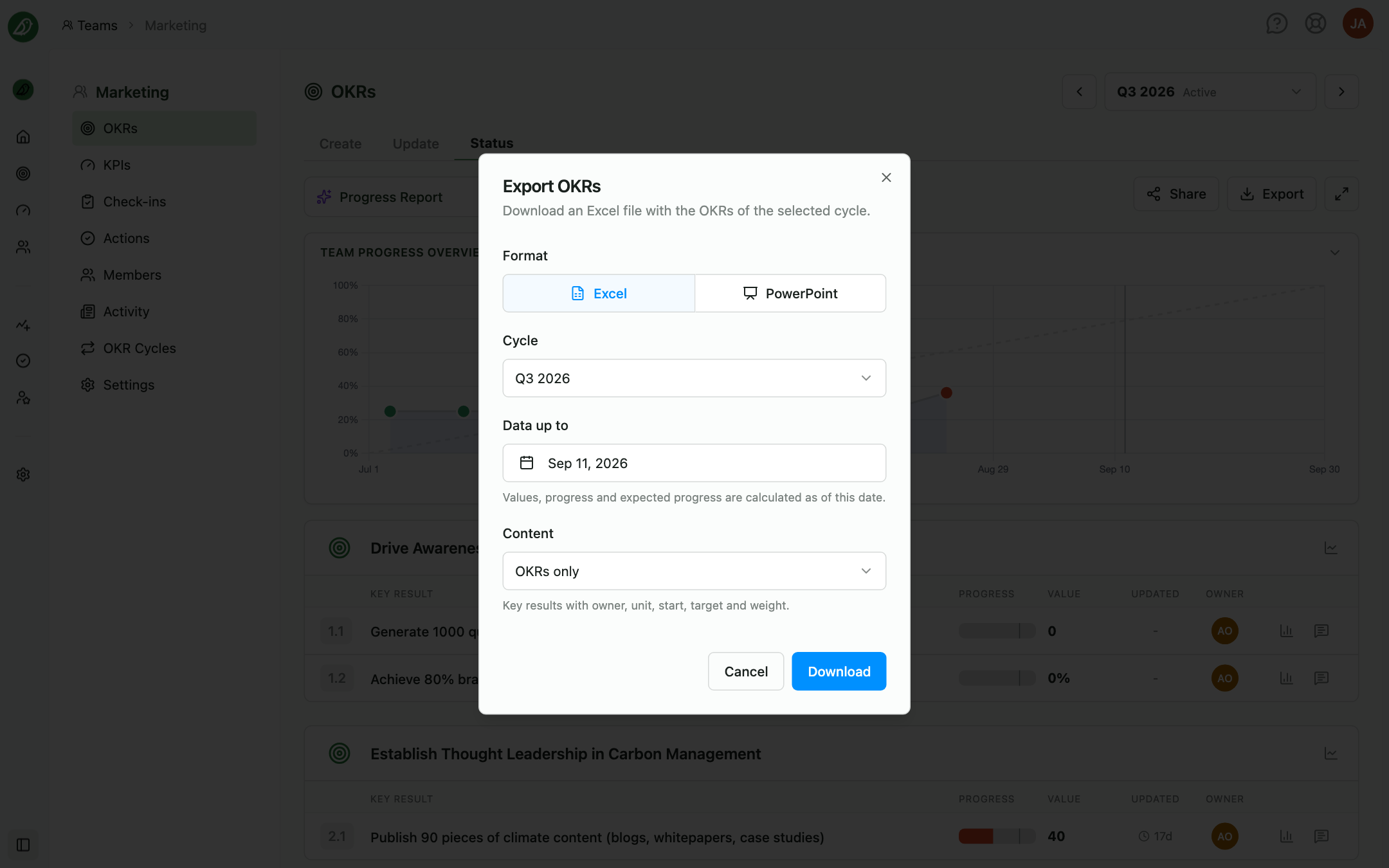
At the top of the Export OKRs dialog, pick Excel or PowerPoint under Format. The dialog always opens with Excel selected. The scope options (cycle, date, teams) are the same for both formats; only the content options differ.
- Excel gives you one worksheet per team, suited to analysis and further processing.
- PowerPoint gives you a cover slide and one slide per team, ready to present. Teams with many key results continue on extra, numbered slides.
Exporting a team's cycle (Status tab)
On a team's Status tab, click Export next to the fullscreen control.
- Cycle: choose one of the team's cycles. The cycle you are currently viewing is preselected; draft and archived cycles are marked as such.
- Data up to: the cutoff date for values and statuses. It defaults to the end of the selected cycle.
The Excel file contains one worksheet with the team's OKRs for that cycle; the PowerPoint deck contains a cover slide and the team's slides.
Exporting across teams (OKRs page)
On the organisation-wide OKRs page, open the Table tab and click Export next to the column settings control.
- Data up to: the cutoff date for the export. It starts as the date selected in the page header, and you can change it in the dialog.
- Teams: pick the teams to include with Select teams. The teams currently visible in the table are preselected. Each team contributes its cycle at the chosen date; teams without a cycle at that date cannot be selected. Changing the date recalculates which teams have a cycle.
The Excel file contains one worksheet per team and the PowerPoint deck one slide per team. You can export up to 20 teams at once; a warning appears if you select more.
Content options
Excel
| Option | What you get |
|---|---|
| OKRs only | Key results with owner, unit, start, target and weight |
| OKRs with latest update | Adds current value, progress and status as of the cutoff date |
| OKRs with update history | Adds one column per time bucket with the latest value in each |
For OKRs with update history, a Granularity select controls the size of the time buckets, from No grouping (one column per update date) up to Yearly.
PowerPoint
| Option | What you get |
|---|---|
| OKRs with latest update | One slide per team: objectives and key results with target, current value, progress, status and owner |
| OKRs only | The plan only: objectives and key results with target and owner |
With OKRs with latest update you can also tick Include latest update comments to add each key result's latest comment under its row (with its date when it is newer than the last value). The Layout select chooses between Wide (the default: one full-width table that suits long key result titles and also shows the expected value) and Compact (two tables side by side, fits more on a slide).
In both formats, statuses are colour-coded with the same traffic lights as in the app, and your organisation's brand colour is used in the styling. Deleted objectives and key results are not included.
Downloading
Click Download. The button shows a spinner while the file is being prepared. When the browser starts saving the file, the dialog closes automatically.
Permissions
- Owners and admins can export any team's cycles.
- Members can only export teams they are a member of. On the OKRs page, other teams are simply not offered; on a team's Status tab, the Export button is only shown for your own teams.
If you export very frequently, you may be asked to wait a moment before trying again.