

A KPI is a standalone metric that lives outside any single OKR cycle, such as monthly recurring revenue, support response time, or active users. Where a key result describes a goal for one cycle, a KPI is the number itself, tracked for as long as it matters. Key results can track a KPI so that a cycle goal and the underlying metric share one history.
Where to find KPIs
- KPIs in the sidebar opens the organisation-wide catalogue with every KPI you can see
- Each team workspace has a KPIs section showing only that team's KPIs
- Update Progress > KPIs lists the KPIs you own so you can update them alongside your key results
- A check-in's overview shows a Team KPIs card when the team has KPIs
The KPI catalogue
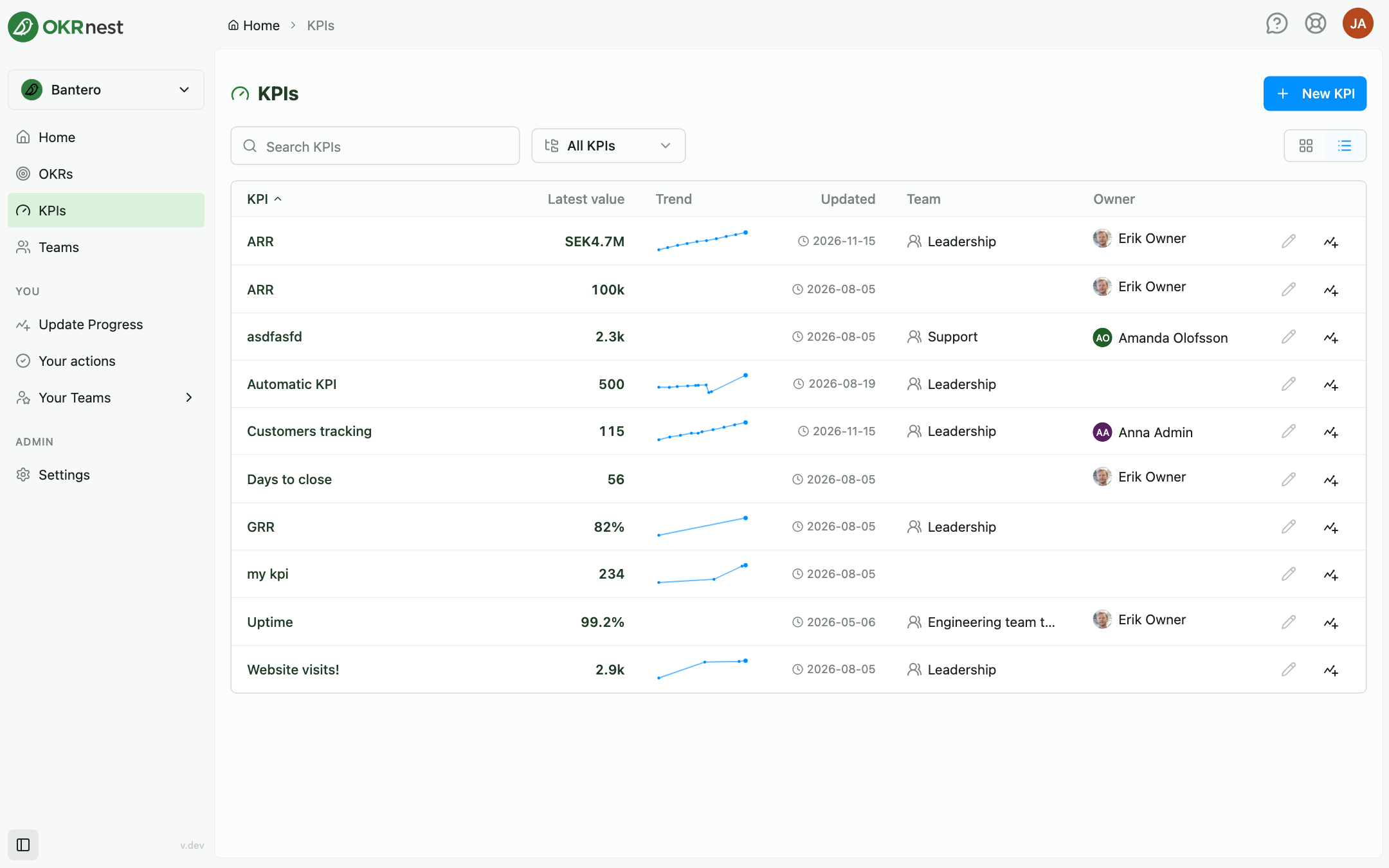
Use Search KPIs to filter by name and the All KPIs dropdown to pick teams; tick Organisation only to include KPIs that belong to no team. Switch between Card view and Table view with the toggle on the right; your choice is remembered.
Cards show the KPI name, its latest value, a small trend sparkline, and the team and owner. The table has the columns KPI, Latest value, Trend, Updated, Team, and Owner, plus Edit KPI and Add progress update buttons on each row where you have permission. Click a KPI to open its status sheet.
Creating a KPI
Click New KPI in the catalogue or in a team's KPIs section. In the New KPI dialog, set:
- Name, for example Monthly recurring revenue
- Unit: Number, Percent, or Currency (Currency uses the organisation's currency)
- Team: the owning team, or None for an organisation-wide KPI. In a team's KPIs section the team is fixed
- Allow manual updates: leave on for people to enter values. Turn it off when the value comes only from API keys and integrations
- Owner: the person responsible for the number
Team members can create KPIs for their own teams. Admins and owners can create KPIs for any team and organisation-wide KPIs.
Updating a KPI
Click Add progress update on a row, or open the KPI and use the update button in its sheet. The dialog asks for the New value, the Last day included in this update, and an optional Reflection. KPIs have no traffic light; they are plain measurements. The left side of the dialog shows the KPI's history, where existing entries can be edited or deleted by people with write access.
When Allow manual updates is off, values arrive from integrations only. People can still add comments.
The KPI status sheet
Click a KPI to open its sheet. The Status tab shows the owner, last update, latest value, a progress graph over time, and the full list of updates. The Edit tab holds the same fields as the creation dialog and a Delete KPI action. Deleting a KPI removes the KPI and its update history and cannot be undone.
Who can do what
- See a KPI: everyone in the organisation
- Update, edit, and delete a KPI: its owner, members of its team, and organisation Admins and Owners. Organisation-wide KPIs are managed by Admins and Owners
- Values set by integrations require an API key with write permission; see API Keys & Connected Apps
Using KPIs with OKRs
Any key result can Track an existing KPI from its settings, or a key result's own metric can be converted into a KPI. The key result keeps its own From and To targets and owner, while the numbers come from the KPI. See Tracking a KPI with a Key Result.
Tips
- Keep the catalogue small: A handful of KPIs everyone recognises beats dozens nobody updates
- Automate where you can: Feed KPIs from your data warehouse or BI tool through the API and turn off manual updates so the number is never typed twice
- Assign owners: A KPI with an owner appears on that person's Update Progress page, so it gets updated with their key results