

The AI Assistant helps you write better OKRs and spend less time summarising progress. It appears in four places in OKRnest.
Note: Requires the AI Assistant feature, enabled under Admin Settings > Features. It is available on paid plans, and each plan includes a monthly allowance of AI credits. Owners can see AI Credit Usage under Admin Settings > Subscription.
Drafting OKRs with the coach
On a team's Create tab, click Generate OKRs in the toolbar. A team creating its first OKRs is offered Draft with AI directly.
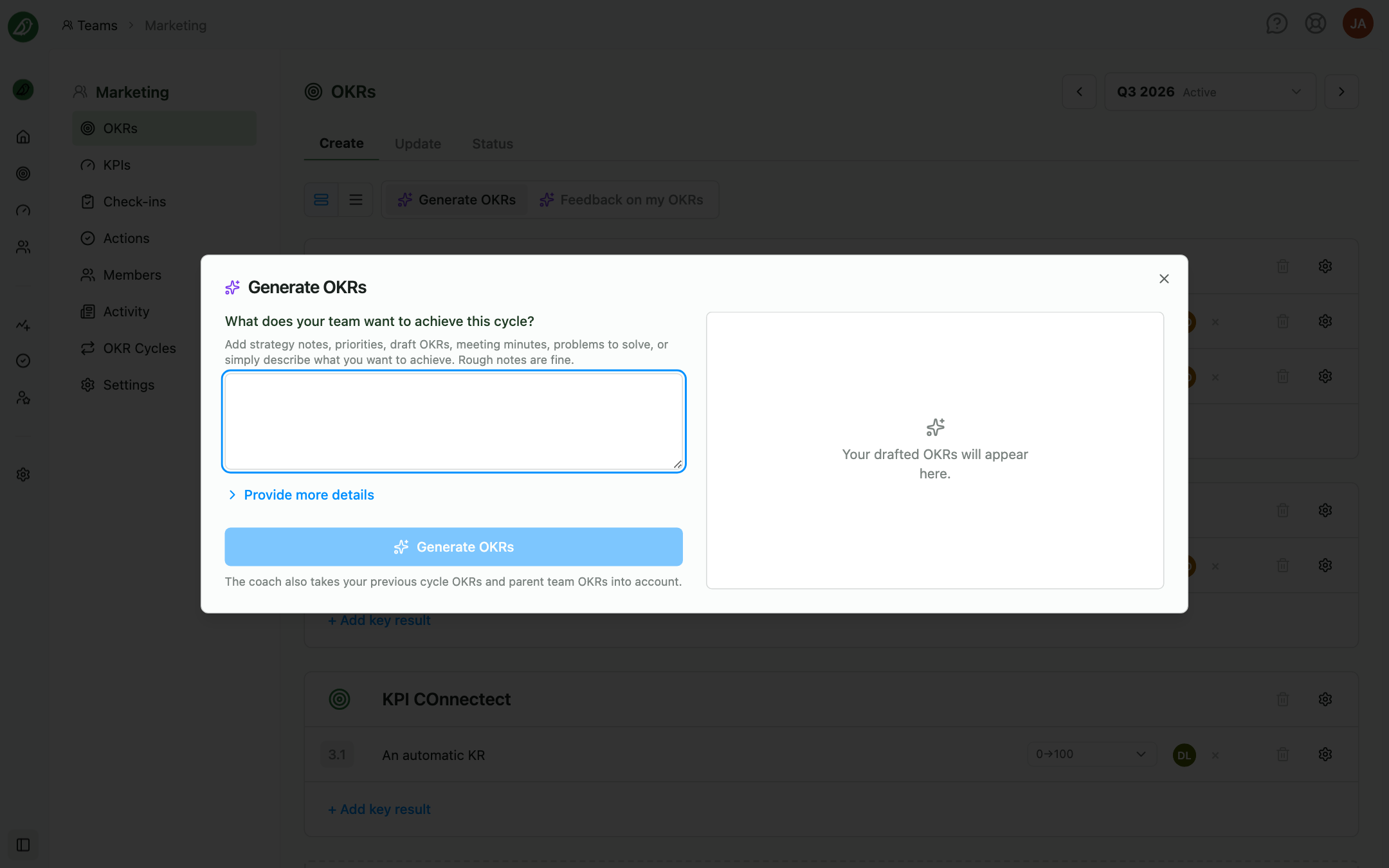
In the Generate OKRs dialog, describe What does your team want to achieve this cycle? Rough notes are fine: strategy documents, priorities, meeting minutes, or problems to solve. Provide more details reveals optional fields for Why does it matter?, What would success look like?, and Supporting context, where you can paste a large amount of text.
Click Generate OKRs. The coach also takes your previous cycle's OKRs and your parent team's OKRs into account. Drafted objectives and key results appear on the right. Click Add N objectives to draft to place them in the editor, then refine titles, targets, and owners like any other OKRs. Regenerate OKRs produces a new draft if the first misses the mark.
Feedback on your OKRs
Once your OKRs are saved, click Feedback on my OKRs in the Create tab toolbar and then Generate feedback. The assistant reviews each objective and its key results and suggests improvements, for example where a key result is an activity rather than an outcome or where targets are missing. Feedback is advice only; nothing changes until you edit the OKRs yourself.
Progress reports
On a team's Status tab, and in a key result's status sheet, the Progress Report card writes a summary of how the team or key result is doing, based on the recorded values, traffic lights, and comments. Use it to prepare a leadership update or to catch a pattern across many key results.
Check-in summaries
In the check-in composer, the Generate check-in summary panel in the notes card drafts a summary of progress since the previous check-in. Add summary to notes pastes it into the general notes where you can edit it; Regenerate tries again.
Your organisation's words
If your organisation has renamed OKRs or actions under Admin Settings > General > Terminology, the assistant uses those words.
When the assistant is unavailable
If the feature is off, the buttons show an upgrade hint. If the monthly credit allowance is used up, the assistant explains this and owners see an Upgrade subscription link.
Tips
- Give the coach real material: The more context you paste, the more specific the draft
- Treat drafts as a starting point: Owners, targets, and the exact wording are still the team's decision
- Run feedback before publishing: It is cheapest to fix a weak key result while the cycle is still a draft