

A shareable view is a public link that shows a team's OKR status to people who do not have an OKRnest account, such as a board, a client, or the wider company. The page stays live: it always shows the current numbers, so you never need to re-send a screenshot.
Note: Requires the Shareable views feature, enabled under Admin Settings > Features. It is available on paid plans.
Creating a link
- Open the team's OKRs section and the Status tab
- Click Share at the top right (desktop only)
- In the Share status view dialog, fill in:
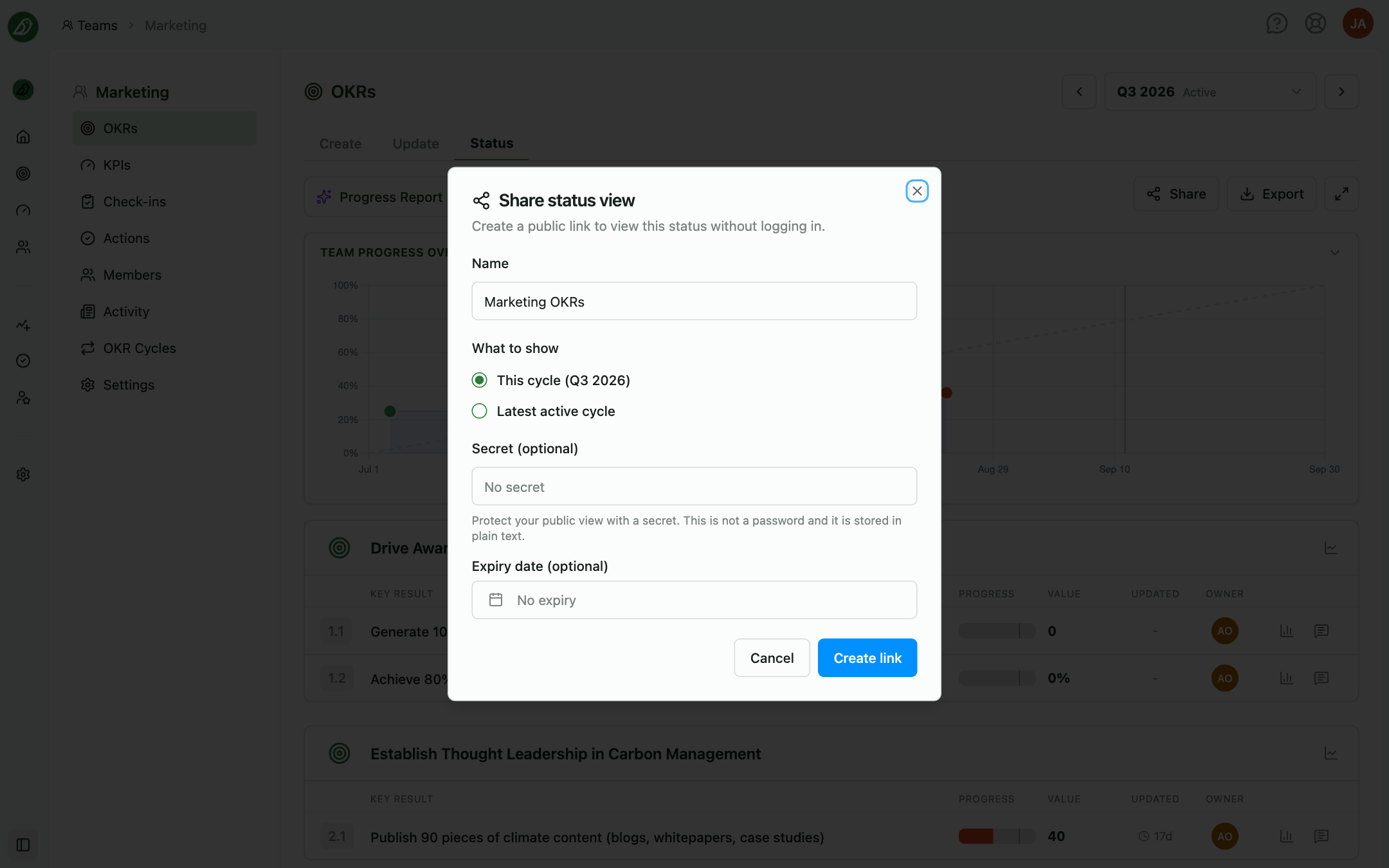
- Name: A label for the link, prefilled with the team name. Viewers see it as the page title
- What to show: This cycle for the cycle you are viewing, or Latest active cycle so the link always follows the team's current cycle
- Secret (optional): A phrase viewers must enter before the view opens. Leave it as No secret for an open link. The secret is not a password and is stored in plain text, so do not reuse a real password
- Expiry date (optional): After this date the link stops working
- Click Create link
Team members, admins, and owners can create links for a team.
Managing links
Existing links for the team are listed in the same dialog. For each link you can:
- Copy link and Copy secret to send to viewers
- Open in a new tab to check what viewers see
- Edit link to change the name, scope, secret, or expiry
- Reset link to issue a new address. The old address stops working immediately
- Delete link to remove it. Confirm with Delete this shared link?
Links past their expiry show an Expired badge; links that are switched off show Inactive.
Admins and owners see every link in the organisation under Admin Settings > Security > Shared view links, with the team, access type, creator, and expiry, and can delete any of them.
What viewers see
The shared page opens without logging in. If the link has a secret, viewers first see Access shared view with a Secret field and a View button. After too many wrong attempts they must wait a few minutes.
The page then shows the team's status view: team progress, objectives, and key results with progress bars, traffic lights, values, and owners, styled with your organisation's brand colour. It refreshes itself periodically while it is open. If the team has no active cycle yet, the page explains that the view will appear once a cycle is activated.
Viewers cannot edit anything, and they see only what the status view shows.
Tips
- Use Latest active cycle for standing links: One link in a board pack or intranet page stays valid quarter after quarter
- Add a secret for sensitive teams: Anyone with an open link can view it; a secret keeps forwarded links from being useful
- Reset rather than delete when a link leaks: Viewers with the new address keep working; the old address dies